Broken links and redirects
Find broken links, create redirects, import and export CSV files, and handle deleted products.
The Links tab finds links on your store that lead to a missing page, and lets you send old addresses to pages that exist. Each redirect is saved straight to your Shopify store, read back to confirm it, and can be undone. Everything on this page is free.
Before you start
- Every plan, including Free. Links, redirects and CSV files use no credits.
- Open SEO, then the Links tab.
- Broken links are read from your live storefront, so your store needs to be open. A password-protected store shows a note here until the password is removed. You can add redirects either way.
How do I fix a broken link?
Broken links lists links in your published pages and blog posts that point to a missing product, collection, page or blog post. Each row names the page the link sits on.
Open the link
Select Fix this beside the link. What to fix names the address that no longer exists.
Choose where it goes
In Send visitors to, type a page on your store, such as /collections/all.
Create the redirect
Select Create redirect. The row shows its status and an Undo button.
RankX AI checks 40 new links on each visit and reuses a result for 6 hours, so a large store is covered over a few visits. The list shows up to 50 links. Show all opens the rest once the list passes 10 rows.
How do I redirect a product I deleted?
Products you deleted appears when RankX AI has a suggestion for you. It lists the old address of a deleted product and suggests sending visitors to a page that still sells something close, such as its collection.
- Check Send visitors to. It starts as
/collections/all, and you can change it. - Select Redirect, or Dismiss if you want to leave the address as it is.
A suggestion is made for a product whose address RankX AI already knew when you deleted it. For anything else, add the redirect by hand.
To have this happen on its own, go to Settings and tick Redirect a deleted product's address automatically. The address is sent to your catalogue page, and each redirect can be undone.
How do I add a redirect?
Open Your redirects
On the Links tab, find Add a redirect under Your redirects.
Type both addresses
In From (old address), type the path that now shows a page not found, such as /products/old-name. In To, type the page on your store to send visitors to.
Save
Select Add redirect. RankX AI checks the old address, creates the redirect, and reads it back.
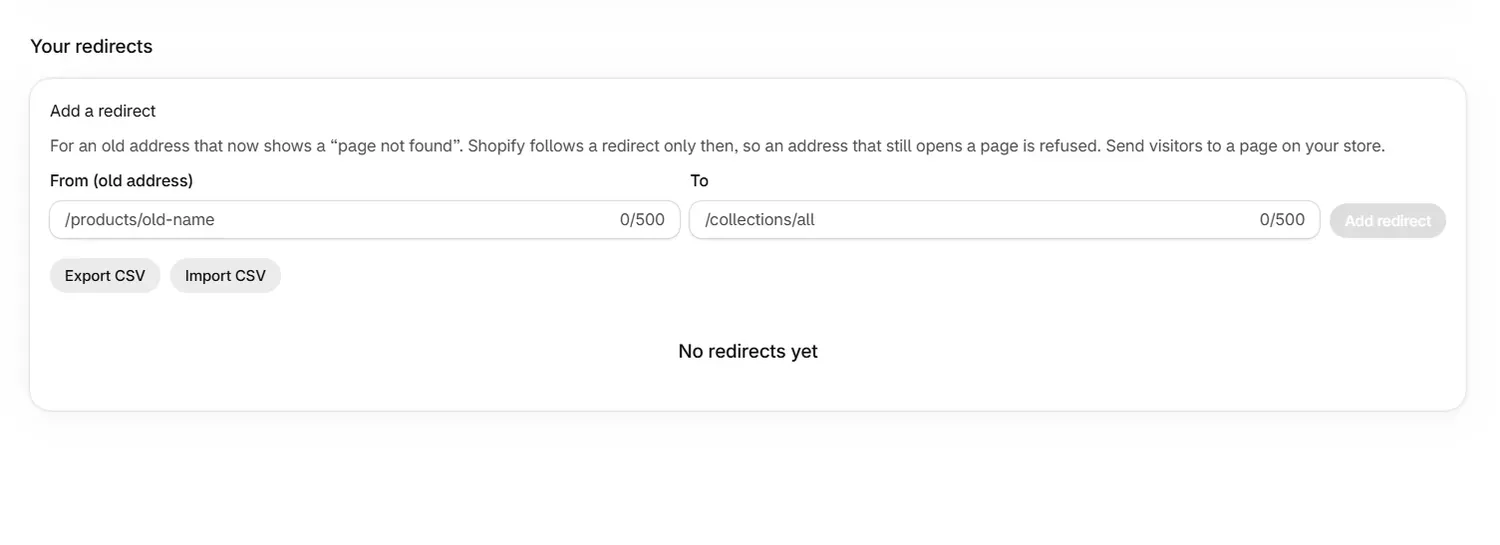
Shopify follows a redirect only when the old address shows a page not found, so an address that still opens a page is refused. Addresses the app cannot look up, such as blog posts, are allowed through.
How do I import or export redirects?
Export CSV downloads redirects.csv with up to 5,000 redirects, in two columns: Redirect from and Redirect to.
To import:
- Select Import CSV and choose your file.
- Read the preview, which shows the first 20 rows, how many redirects are ready, and any lines left out with the reason.
- Confirm the import. Each redirect is checked on your store, and the import can be undone as one.
A file needs two columns: the old address, starting with /, and where to send visitors. A header row, a semicolon separator and quoted cells are all fine.
| Line left out because | What to do |
|---|---|
| "Needs both a from and a to." | Fill in both cells |
| "The from must be a path on your store, starting with /." | Use a path such as /products/old-name |
| "The from and to are the same page." | Point it at a different page |
| "This from appears more than once." | Keep one line for that address |
| "Only the first 250 redirects are imported at once." | Import the rest in a second file |
How do I remove a redirect?
Select Remove beside it in the table, or Undo on a redirect you have just made. You can also undo it from Changes. The table lists your first 100 redirects, and Export CSV shows every one.
What does each result mean?
| What you see | Meaning |
|---|---|
| Redirect created and confirmed | The redirect was read back from your store |
| Redirect created | Shopify accepted it and the read back is not finished |
| Redirect removed and confirmed | It has gone from your store |
| "We checked ... links on your pages and blog posts and none is broken." | Nothing to fix in what was checked |
| "The rest are checked on a later visit." | More links are waiting to be checked |
Why was my redirect refused?
| Message | Cause | What to do |
|---|---|---|
| "That address still loads, so a redirect would do nothing" | The page is live. A deleted product's handle may be in use by a live product, or a draft may be active again | Leave the page live, or remove it in Shopify first |
| "That redirect already exists and points where you want it to." | The redirect is already in place | Nothing |
| "That address already redirects to" another page | The old address has a redirect | Remove that one first if you want a new target |
| "That redirect would point the address at itself." | From and To are the same | Choose a different target |
| "That address is not a path on this store" | The old address is not a path | Use a path starting with / |
| "That address already redirects somewhere else" | Your target is itself redirected, and Shopify does not let one redirect point at another | Point at the final address |
| A message that the target is another site | Redirects made here stay on your store | Use a page on your own store |
| "Shopify accepted the redirect but it could not be read back" | The read back did not finish | Open the old address to test it |
Common problems
| What you see | Cause | What to do |
|---|---|---|
| "Your store is password-protected, so its links cannot be checked from outside." | The storefront has a password | Remove it in your Online Store preferences when the store is ready to open |
| "Your links could not be checked just now." | The storefront did not answer | Open the tab again later |
| "Your store has more redirects than are listed here." | The table shows the first 100 | Select Export CSV |
| "That file could not be read." | The file is not a CSV | Save it as a CSV and try again |
What to do next
Questions
How do I add a redirect in the RankX AI app?
Open SEO, then the Links tab. Under Your redirects, type the old address in From, type the page to send visitors to in To, and select Add redirect. It is free on every plan.
Why was my redirect refused because the address still loads?
Shopify follows a redirect only when the original page is gone, and it removes the redirect if the page comes back. RankX AI checks the old address first and refuses one that still opens a page.
Can I redirect to another website?
No. A redirect made here points at a page on your own store, which keeps visitors on your domain.
How many redirects can I import at once?
Up to 250 from one CSV file. The import is checked on your store and can be undone as one.
Last updated