Settings
Every setting in the app: store name, market, frequency, automatic changes, weekly email, agency code and advanced.
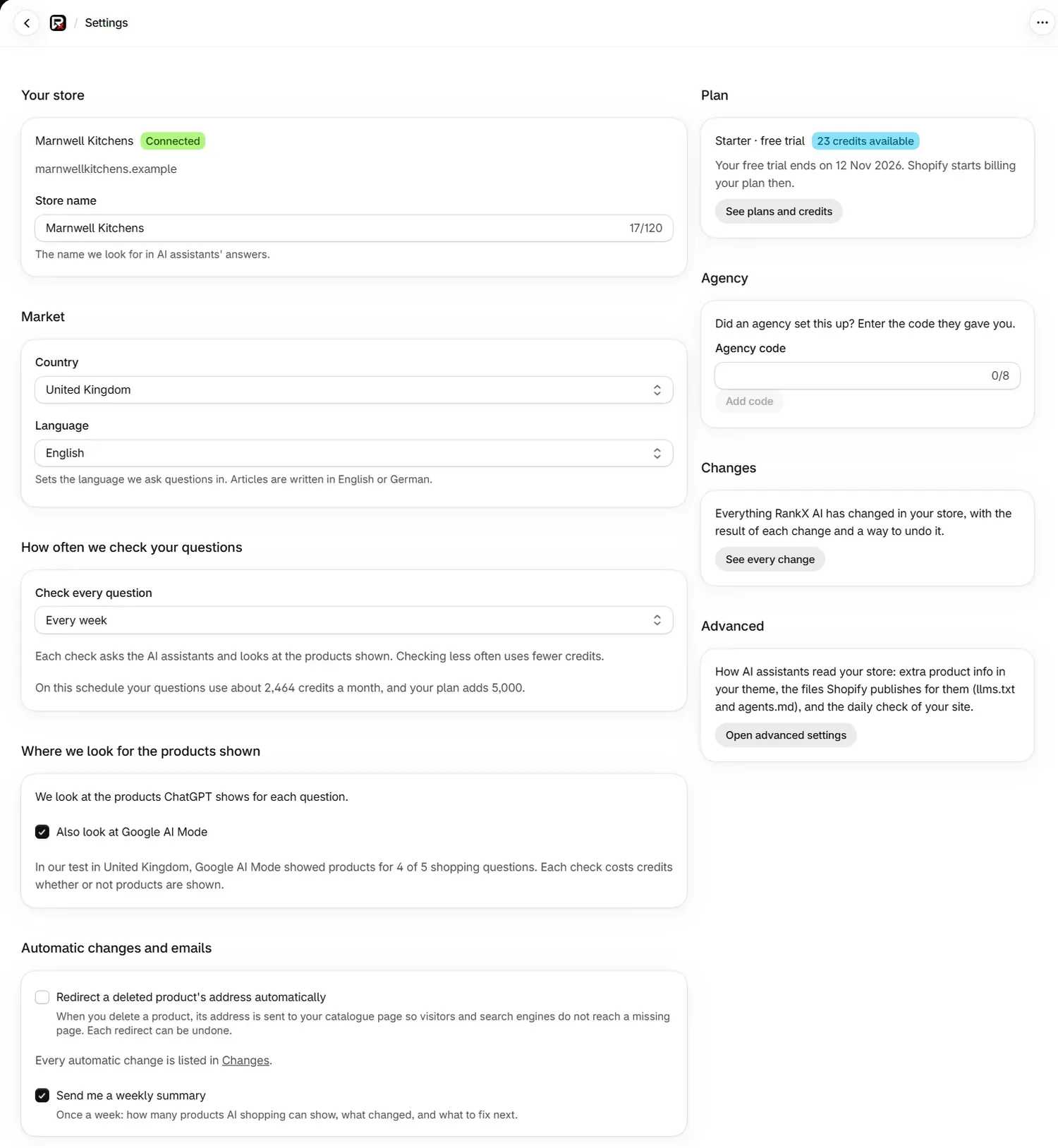
Settings holds your store name, market, check schedule, automatic changes and weekly email, with links to your plan, Changes and advanced settings. Open it from Settings in the app menu. Some cards save when you change them, and others use Shopify's save bar.
Before you start
- Every plan, including Free. Cards that apply to paid checks, such as the schedule, take effect on a paid plan or trial.
How do I change my store name?
The Store name field in Your store is the name RankX AI looks for in AI assistants' answers. It starts as your Shopify store name and holds up to 120 characters. Use the name shoppers know you by, then save with Shopify's save bar.
The card also shows your store's address and its connection badge, which your account and store connection explains.
How do I set my market and language?
Choose your country
In Market, open Country and choose where your shoppers are. RankX AI checks AI answers as they appear there.
Choose your language
Language sets the language questions are asked in. Leave it on The country's main language unless your shoppers use another. Articles are written in English or German.
Save
Press save on Shopify's save bar. You see Settings saved.
RankX AI fills in your market from your billing country when it can. Until a country is set, checks run for the United States in English. Changing your market leaves Also look at Google AI Mode as it is, so review that box afterwards.
How do I change how often questions are checked?
Open Check every question in How often we check your questions and choose Every day, Every 3 days or Every week. It saves at once. If it reads Choose how often, your two kinds of check were on different schedules, and choosing one sets both.
Below the field is the forecast: "On this schedule your questions use about 2,464 credits a month, and your plan adds 5,000." Those figures are from our demo store on Starter on Every week, the schedule setup starts you on. Your forecast is worked out from your own questions.
If your forecast is more than your plan adds, scheduled checks stop when credits run out. Read that line after setup and whenever you add questions, then choose a slower schedule or pause questions. Credits shows how it adds up.
During the free trial, checks run every 7 days at most, whatever you choose here. Home shows the schedule in use.
Where does RankX AI look for the products shown?
RankX AI always looks at the products ChatGPT shows for each question. Tick Also look at Google AI Mode to add Google, which saves at once.
The note under the box shows how often Google AI Mode showed products in our test of your market, such as 4 of 5 shopping questions. Each check costs credits whether or not products are shown, so a low figure is a good reason to leave it off. Google AI Mode markets has the full table.
What do the automatic changes do?
These two settings in Automatic changes and emails save at once.
| Setting | Starts as | What it does |
|---|---|---|
| Redirect a deleted product's address automatically | Off | When you delete a product, its address is sent to your catalogue page, so visitors and search engines do not reach a missing page. Each redirect can be undone. |
| Send me a weekly summary | On | Once a week: how many products AI shopping can show, what changed, and what to fix next. |
Every automatic change is listed in Changes. The notifications page covers the weekly summary.
What is the Plan card?
Plan shows your plan, your balance and your plan's state. Press See plans and credits to open the Plan page. See plans and billing.
What is the Agency card?
The Agency card is for stores an agency set up. RankX AI pays that agency a commission on your plan, and it does not change what you pay.
Add the code
Enter the 8-character Agency code your agency gave you, then press Add code. You can add one before your store is on a paid plan. After that, the card reads "No agency is linked to this store."
Confirm the link
The card names the agency. The store owner presses Confirm, or Not us if it is wrong. A collaborator sees "Waiting for the store owner to confirm."
Once confirmed, you can press Remove this link at any time.
What is the Changes card?
Press See every change to see everything RankX AI has changed in your store, with the result of each change and, where it applies, a way to undo it. See undo changes.
What is on the Advanced page?
Press Open advanced settings to open How AI assistants read your store. Press Check again at the top to refresh it, at most once an hour.
Your storefront shows whether AI assistants can open your store and read what it publishes for them.
| Badge | What it means |
|---|---|
| Readable | Shopify serves agents.md and llms.txt for your store. |
| Password-protected | AI assistants cannot read your store until you remove the password. |
| Files not published | Your storefront is served another way, which is normal for headless stores. |
| Not checked | The check did not complete. Try again in a few minutes. |
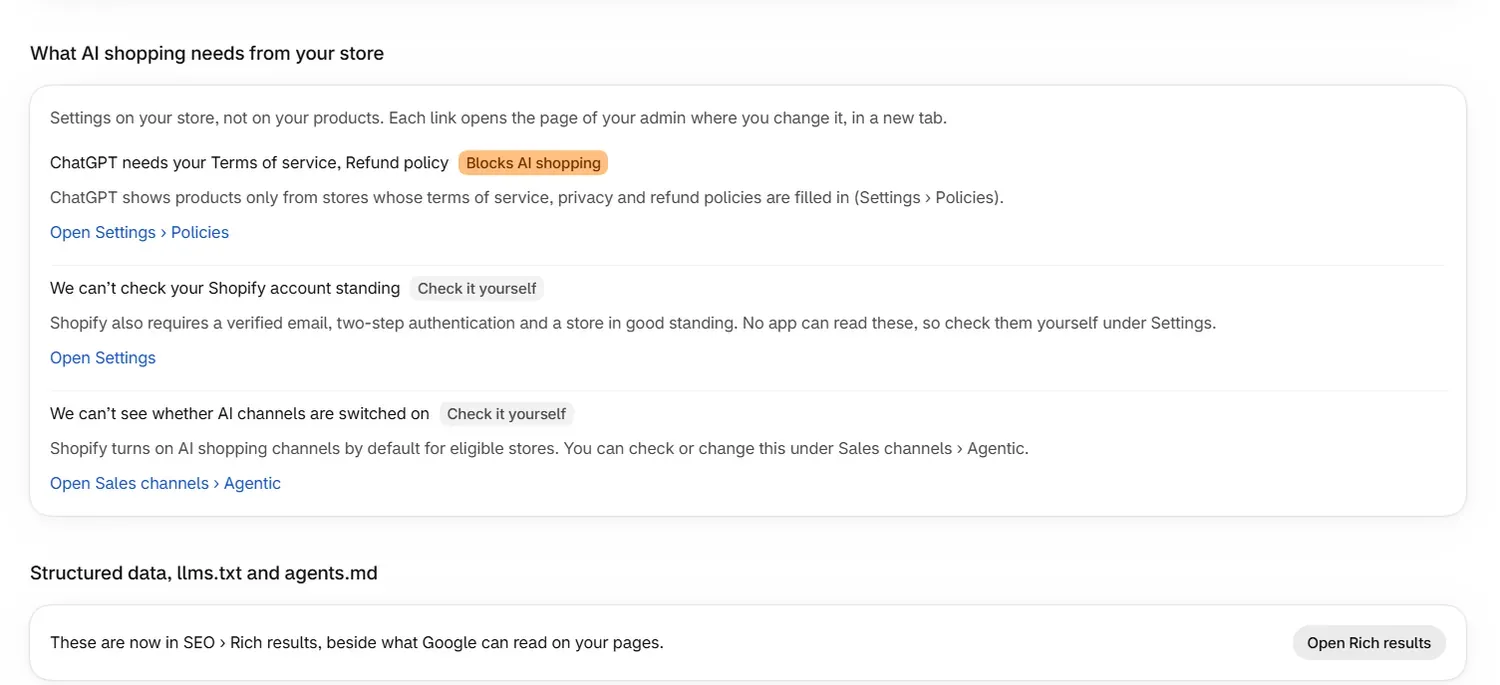
What AI shopping needs from your store lists settings on your store, each with a link that opens the right page of your Shopify admin.
| Badge | What it means |
|---|---|
| Blocks AI shopping | ChatGPT needs your terms of service, privacy and refund policies filled in. |
| Check it yourself | No app can read this, such as your verified email, two-step authentication, or whether AI channels are on under Sales channels › Agentic. |
| Needs attention | A store setting to look at. The line beside it says which. |
| Needs your theme developer | Product links on your catalogue page go through a collection address, which your theme controls. |
Daily site watch reports Found, Not found or Could not be read for robots.txt, llms.txt and your home page. Structured data and the files Shopify publishes are in rich results.
Common problems
| What you see | Cause | Fix |
|---|---|---|
| "Your store's name cannot be empty." | The Store name field is blank. | Enter your store name. |
| "Choose a country from the list." | The Country value is not one of the options. | Choose from the list. |
| "At least one place must stay switched on, so ChatGPT is still checked." | ChatGPT always stays on. | Nothing to fix. |
| "That code was not recognised." | The Agency code does not match. | Check it with your agency. |
| "This store is already on a paid plan, so a code can no longer be added." | Codes are added before a paid plan. | Nothing to fix. |
| "Your store was checked less than an hour ago." | Check again runs at most hourly. | Try again at the time shown. |
| "Your store has not finished setting up yet." | The first setup has not completed. | Reopen the app to finish setup. |
What to do next
- Read Google AI Mode markets before changing where you look.
- See notifications and the weekly summary.
- Check what uses credits.
Questions
How do I change how often RankX AI checks my questions?
Go to Settings, find How often we check your questions, and choose Every day, Every 3 days or Every week. It saves at once, and the forecast below it updates.
Why does my schedule say every 7 days when I chose every 3 days?
During the free trial, checks run every 7 days at most, whatever Settings shows. Your chosen schedule applies once the trial ends.
How do I stop the weekly email?
Go to Settings, find Automatic changes and emails, and untick Send me a weekly summary.
What does the Agency code do?
It tells RankX AI which agency set up the app for you, so that agency can be paid a commission on your plan. It does not change what you pay.
Last updated