Write on a schedule
Let RankX AI write articles on a schedule for your review, and manage your topics.
The Plan tab on the Blog page writes articles for you at the pace you set, from a list of topics you control. Each article waits for your review, and nothing is published without your click. You set how often, how long, and the most articles in a month, so you can see the most it can spend before you switch it on.
Before you start
- Switching the schedule on needs a paid plan or the trial. On Free you can set it up and plan your topics.
- Credits for each article: Short 250, Standard 350, Long 450. The app shows the live price on this page.
- A blog on your store. See AI-written blog posts.
How do I set up a schedule?
Open the Plan tab
Open Blog, then the Plan tab.
Add your topics
Under Topics, type in Add a topic, from 3 to 200 characters. You can also select Add beside an idea from your buyers' questions.
Choose the pace
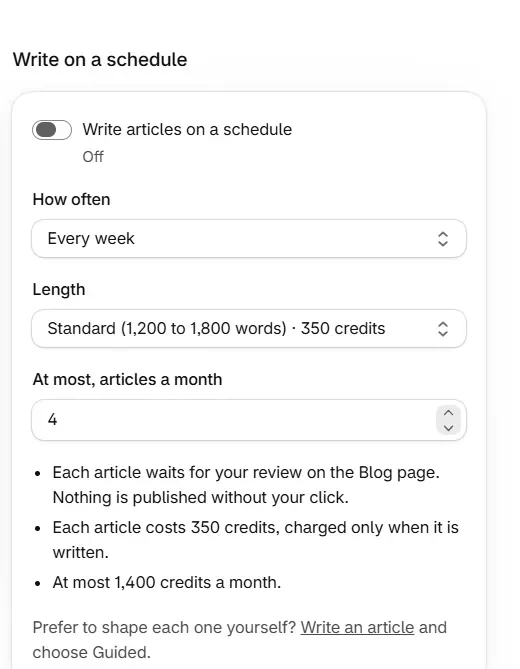
Set How often, Length and At most, articles a month. The page shows the price of each article and the most it can use in a month.
Switch it on
Turn on Write articles on a schedule. The app confirms "The plan is on".
What does each setting do?
| Setting | Choices | Default |
|---|---|---|
| How often | Every week, Every 2 weeks, Every month | Every week |
| Length | Short (700 to 1,000 words), Standard (1,200 to 1,800 words), Long (2,000 to 3,000 words) | Standard |
| At most, articles a month | 1 to 31 | 4 |
The card under the settings shows how many articles were written this month and when the next one starts.
The credits come from the same balance as your AI search checks, so add the two together when you choose the pace. Settings forecasts what your checks will use.
How do topics work?
Topics are written in the order shown, one per period. Use the move controls to reorder them, and remove any you no longer want. The list holds up to 50 planned topics, and each row is labelled Your topic or From your store.
When your list runs out, the plan picks topics from your store's products and the questions shoppers ask.
To put your own answers in an article, choose its title or shape its sections, select Write an article and choose Guided. A scheduled article is written from its topic and comes without a featured image, which you can add on the article's page before publishing.
How do I review a scheduled article?
Open Blog. Each finished article waits under Articles, and you review, improve and publish it the same way as one you started yourself. Written by the plan on the Plan tab lists the last 10, with their topic, state and start date.
| State | Meaning |
|---|---|
| Planned | Waiting for its turn |
| Researching | Research is running |
| Being written | Writing is in progress |
| Being saved | The article is being stored |
| Ready for your review | Waiting for you on the Blog page |
| Needs your edits | Written and saved, with a check to look at. You can still publish it |
| In progress | Still running |
| Cancelled | It was cancelled |
| Not written | It did not finish. The reason is shown beside it |
Why was an article not written?
| Reason on screen | What it means |
|---|---|
| "There were not enough credits." | Nothing was charged. The next article is tried on schedule |
| "Your plan is not active, so nothing was written or charged." | Choose a plan to carry on |
| "The research found no sources good enough to write from" | That topic was left out and nothing was charged |
| "Writing could not finish." | Nothing was charged. The next topic is written on schedule |
| "It stopped making progress and was closed" | It was closed so the next one can start |
| "It was removed before it was finished." | You removed it |
Why is the plan waiting?
| Reason on screen | What to do |
|---|---|
| "This month's articles are written." | The next one starts next month, or raise At most, articles a month |
| "The last article is still being written." | Nothing. It starts when that one is done |
| "You are writing an article yourself; the plan waits for it." | Nothing. It carries on when yours is done |
| "There are no topics left." | Add some under Topics |
| "Writing articles is included in every paid plan." | Choose a plan |
How do I pause a schedule?
Turn off Write articles on a schedule. The app confirms "The plan is paused". Your topics and settings stay on the page, and nothing more is written until you turn it on again.
Common problems
| What you see | Cause | What to do |
|---|---|---|
| "The plan holds 50 topics." | The list is full | Remove one first |
| "That topic is already planned or being written." | It is on the list | Choose a different topic |
| "That topic has already started, so it stays." | Writing has begun | Review it on the Blog page when it is ready |
| "Write a topic of 3 to 200 characters." | The topic is too short or too long | Change the length |
| "This store was set to publish each article as soon as it is written." | The store used that setting before | Saving here sets it back to waiting for your review |
What to do next
Questions
Do scheduled articles publish themselves?
No. Each article waits for your review on the Blog page, and nothing is published without your click.
What happens when my topic list runs out?
The plan picks topics from your store's products and the questions shoppers ask, so the schedule carries on.
How many credits will a schedule use?
Each article costs the price of its length, charged only when it is written. The Plan tab shows the most it can use in a month, such as 1,400 credits for 4 Standard articles.
What happens if I run out of credits?
The article is not written and nothing is charged. The next one is tried on schedule.
Last updated