Apply a single fix
Open an issue or a product, make the change, and see how RankX AI confirms it on your store.
A fix starts from an issue or from a product, goes into Shopify's own field, and is read back from your store before the app calls it confirmed. Fixes are free on every plan, whether you make them one at a time or many at once. Each one is listed in Changes, where you can undo it.
Before you start
- Every plan, including Free. Typed fixes use no credits. Only AI writing does, and the button shows the price.
- A fix is written straight to your live store.
- Some fixes are made in Shopify rather than in the app. On the product's page in the How you fix it column marks them.
How do I fix a product from an issue?
An issue page lists every product with one problem, so it suits working through the same fix on several products.
Open the issue
Go to Products. In Fixes, most important first, select Fix products or View products beside the issue.
Read what the issue needs
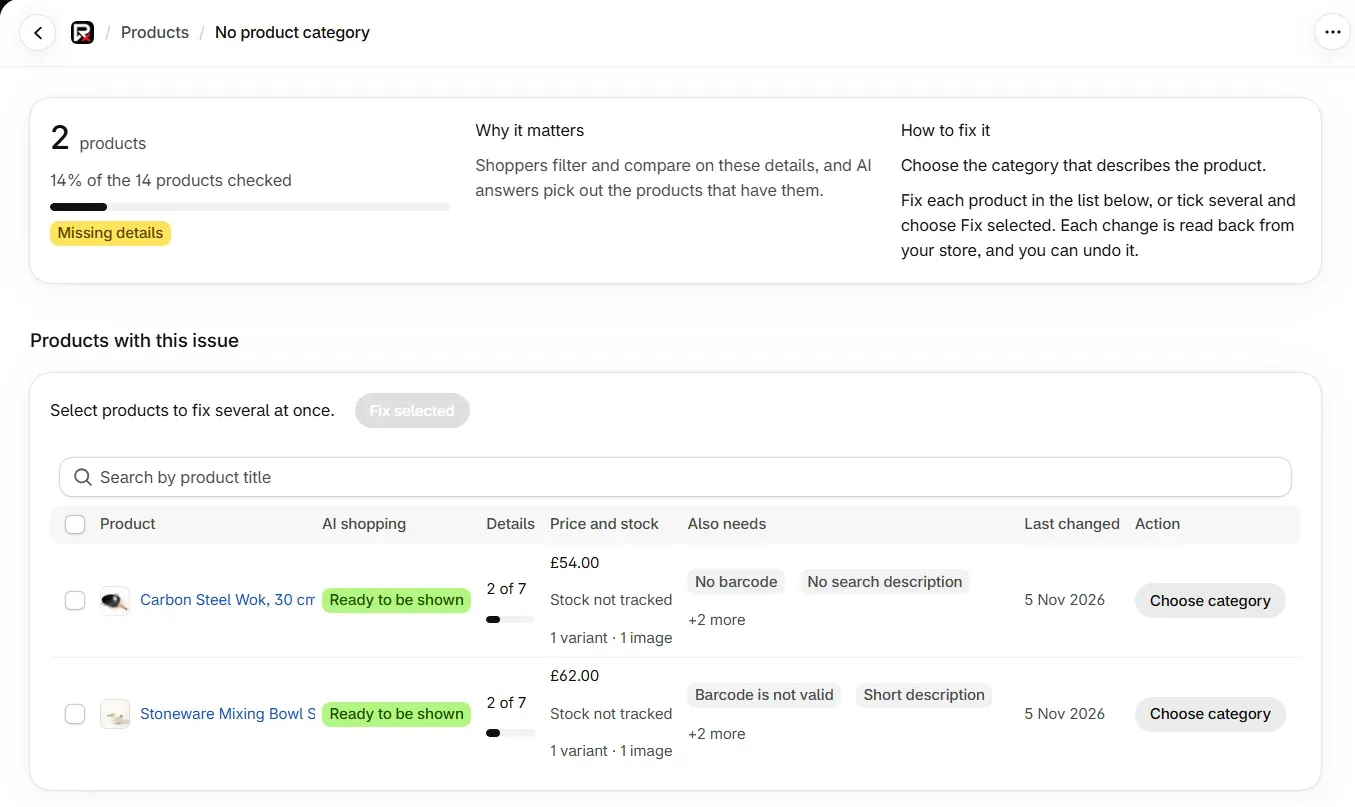
The top of the page shows how many products have the issue, Why it matters and How to fix it.
Fix a product
In Products with this issue, select the button in the Action column and make the change. The table below lists each one.
Check the status
The row shows the result, with Undo beside it. Shopify may ask you to review the app in a dialog after a fix. You can close it.
| Action | What it does |
|---|---|
| Choose category | Opens the category search |
| Set details | Opens the details dialog |
| Add barcode | Opens the barcode dialog |
| Show to search engines | Shows the product to search engines again |
| Fix images | Opens the images dialog |
| Write it in SEO › Listings | Opens SEO, on the Listings tab |
| Edit product | Opens the product in Shopify, in a new tab |
What do the columns on an issue page show?
| Column | What it shows |
|---|---|
| Product | The product, with a link to its page in the app. |
| Issue | Extra detail where there is any, such as "Not set: Material, Color". |
| Status or AI shopping | The product's status from the check. |
| Details | How many details are filled in, on issues about missing details. |
| Price and stock | The price or range, stock, variants and images, read live from Shopify. |
| Also needs | Other issues on the same product, or Nothing else. |
| Last changed | When the product last changed. |
| Action | The fix, or its result once made. |
The table shows 50 products a page, and the search box filters the page you are on.
How do I fix a product from its own page?
A product's page gathers every issue on that product, so it suits finishing one product completely.
Open the product
Go to Products and select the product in Your products. You can also select it on any issue page.
Work through What to fix
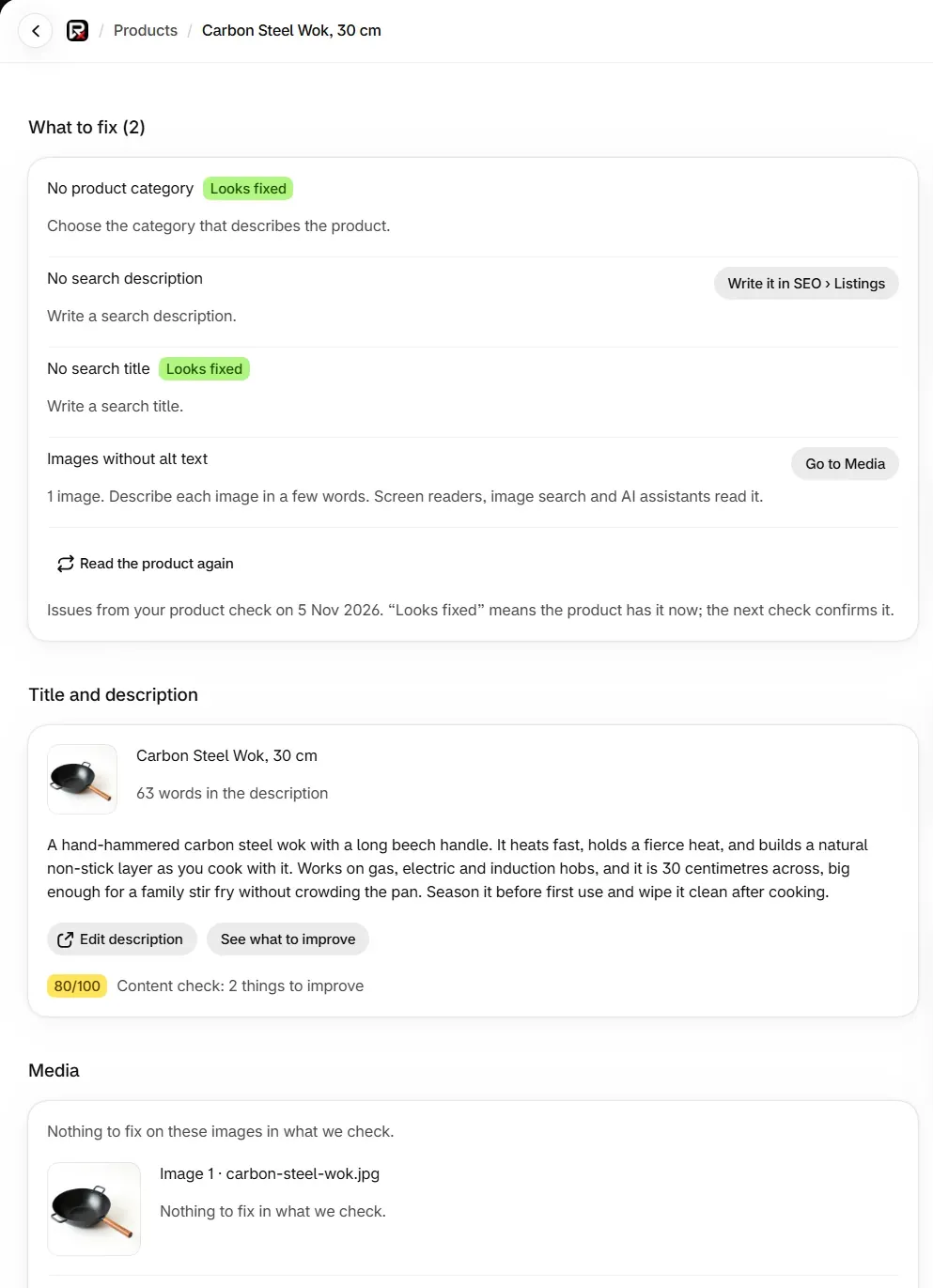
Each issue has its fix button, or the steps to follow in Shopify. If the button opens Shopify, make the change there and save it, then come back to this tab. It updates by itself.
Read the product again
Select Read the product again if you want a fresh read. An issue the product no longer has shows Looks fixed.
Looks fixed is a live reading, and the next product check confirms it. It covers the title, status, image count, price, description, category, a missing barcode, brand, option names, hidden status, and search title and description. Publishing, image details, invalid or shared barcodes and category details clear at the next check.
The rest of the page mirrors Shopify's product page, with cards for Title and description, Media, Category, Variants and Search engine listing. The side column shows Status, AI shopping, Product organization, AI answers and Changes, which lists the last eight changes to this product.
How does RankX AI confirm a fix?
The app reads the field first and keeps its current value, so the change can be undone. It then writes the new value into Shopify's own field and reads that field back from your store.
| Status | What it means | What to do |
|---|---|---|
| Saved and confirmed | The new value was read back from your store. | Nothing. |
| Saved, not yet confirmed | The change was sent, but your store did not read back the new value. | Check the product in Shopify before changing it again. |
| "RankX AI could not confirm whether this change was applied" | The store stopped responding while the change was being sent. | Check the product before sending it again, because sending it again may write it twice. |
| Not changed | The change was refused, and the banner says why. | Nothing was written. Follow the message and try again. |
Common problems
| What you see | Cause | What to do |
|---|---|---|
| "No products have this issue" | It has been fixed since, or your latest check did not find it. | Select Back to Products. |
| The count on Products has not changed after a fix | Counts on Products change at the next check. | Wait for it, or select Check again. |
| "Price, stock, variants and the last change could not be read from Shopify just now." | Those columns are read live. | Reload the page. The fixes still work. |
| "We could not read this product from Shopify just now" | The live read failed. | Select Try again. The fixes shown come from your latest check. |
| "Not in your latest product check" | The product is a draft, archived or newer than the check. | Its details still show. The next check reads it if it is active. |
| A message saying the value "is already" what you chose | The field already holds that value. | Nothing was changed, and nothing more is needed. |
| "That product no longer exists on this store." | The product was deleted in Shopify. | Nothing to do. It leaves the list at the next check. |
| "You have made a lot of changes in the last hour." | The limit is 300 single changes an hour for each store. | Wait a little, then carry on. |
| "Your store is not connected." | The app has lost its link to your store. | Reopen the app from your Shopify admin. |
More messages are listed in Error messages.
What to do next
Questions
What does Saved and confirmed mean?
The change was written to your store, and the app read the field back and found the new value there.
What does Saved, not yet confirmed mean?
The change was sent, but your store did not read back the new value. Check the product in Shopify before changing it again.
What does Looks fixed mean on a product?
The product has what the issue asked for right now. The next product check confirms it.
Does a fix change my live store?
Yes. A fix is written straight to your store, into Shopify's own fields. Every fix is listed in Changes, where you can undo it.
Last updated