The product check
What the free product check reviews, when it runs and how to read its results.
The product check reads your active products and shows what stops each one being shown in AI shopping and Google, and which details it is missing. It runs by itself and costs nothing. You get plain counts rather than a score, and a list of fixes in the order worth doing them.
Before you start
- Every plan, including Free. The check uses no credits.
- There is nothing to set up. The first check starts when you install the app.
- One check reads up to 10,000 products, with status Active or Unlisted.
How do I read the product check?
Open Products
Select Products in the app menu. If a section called Fix your store settings first appears, deal with it before anything else: it covers a setting on your store rather than on your products, and it can hold back every product at once.
Read the three counts
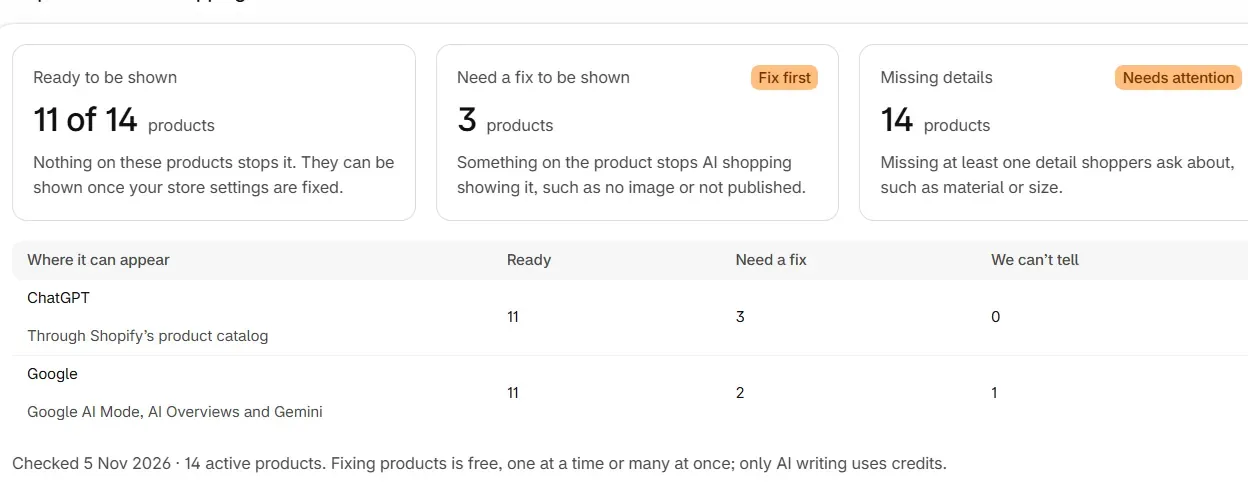
Your products in AI shopping shows how many products are ready, how many need a fix and how many are missing details.
Work down the fixes
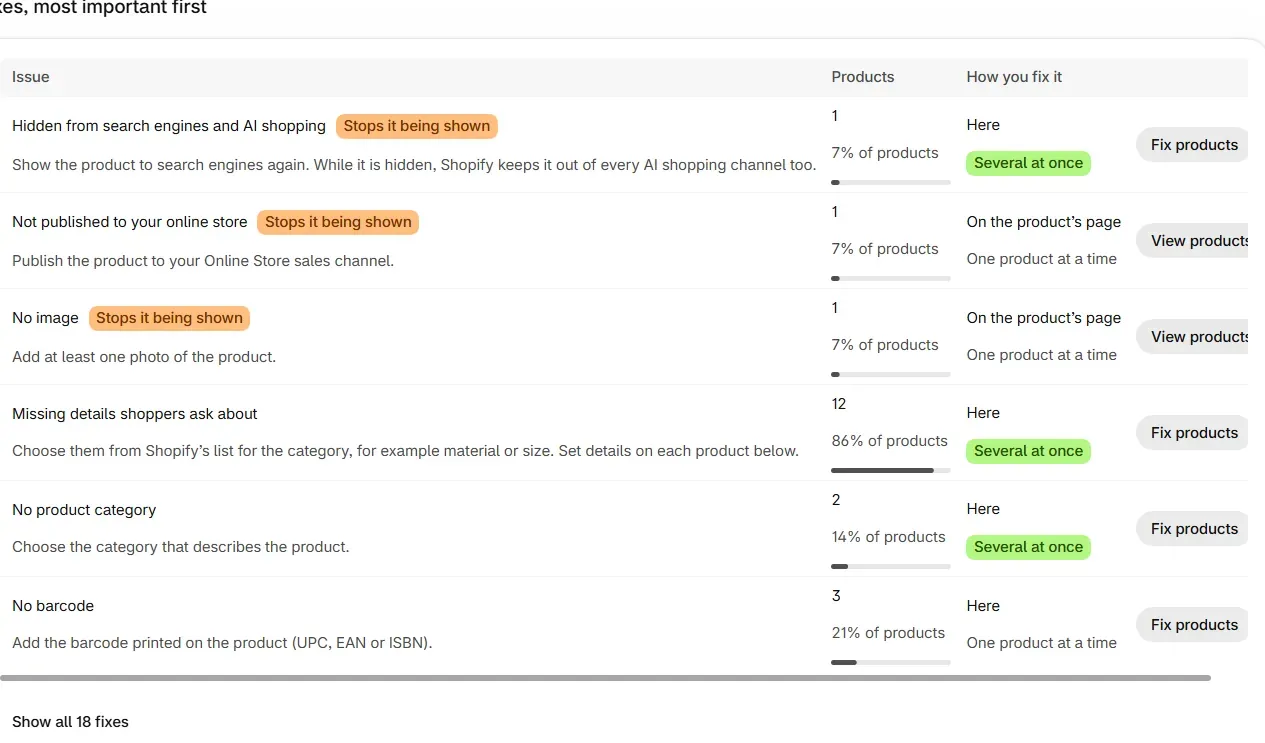
Fixes, most important first lists every issue found. Select Fix products to fix an issue in the app, or View products to see the products for an issue you fix in Shopify or under SEO.
Open a product
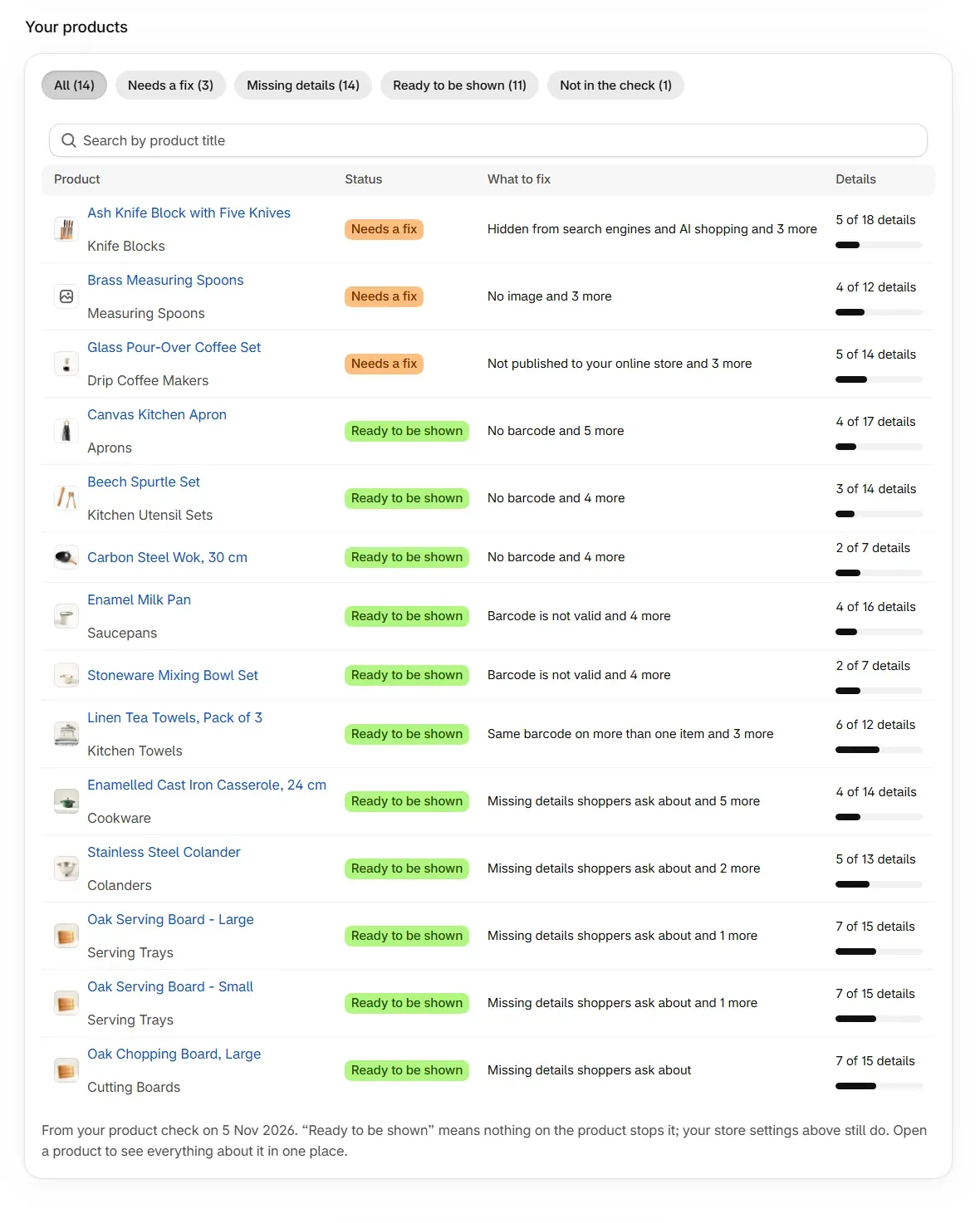
Your products lists each product, worst first, 25 to a page. Select a product to see everything about it in one place.
When does the product check run?
| When | What happens |
|---|---|
| You install or reinstall the app | The first check starts straight away. |
| Every day | Any store not checked in the last 24 hours is checked again, whether or not you open the app. |
| You open Products | A new check starts if the latest one is over 24 hours old and none is running. |
| You add, edit or delete a product | The app waits a couple of minutes to group your changes, then checks again. This happens at most once an hour and six times in 24 hours. |
| You select Check again | A new check starts. You can do this once an hour, or at any time if the last check failed or found no products. |
While a check runs, the button reads Checking now and the page updates by itself. A check usually takes about a minute.
What do the three counts on the product check mean?
| Count | What it means |
|---|---|
| Ready to be shown | Nothing the check can see stops ChatGPT or Google showing these products. A we can't tell badge counts products with a detail that could not be read. |
| Need a fix to be shown | Something on the product stops AI shopping showing it, such as no image or not being published. |
| Missing details | The product lacks at least one detail shoppers ask about, such as material or size. |
Ready to be shown is about what stands in the way. It is not a forecast: which products an assistant picks for an answer is the assistant's choice. Your AI search results show what actually appeared.
The line under the cards gives the date of the check and the number of products it read, which includes unlisted products.
When ChatGPT and Google have different results, a table called Where it can appear splits the counts:
| Channel | What it covers |
|---|---|
| ChatGPT | Through Shopify's product catalog |
| Google AI Mode, AI Overviews and Gemini |
Details are shown as counts such as "5 of 18 details". A detail the app could not read is left out of both numbers, so it never counts as missing.
What does each status in the product list mean?
| Status | What it means |
|---|---|
| Ready to be shown | Nothing on the product stops it. Your store settings still can. |
| Needs a fix | Something on the product stops it being shown. |
| We can't tell | A detail could not be read, so the app does not give a verdict. |
The What to fix column names the top issue and how many more there are, or says Nothing to fix.
How are the fixes ordered?
Issues with the badge Stops it being shown always come first. The rest are ordered by how much each one matters, how many products it affects and how much work it takes. The first six rows show, and Show all opens the rest.
| How you fix it | What it means |
|---|---|
| Here | You fix it in the app. Several at once means a bulk fix is available. One product at a time means each product is fixed on its own. |
| Here, under SEO | You fix it in the SEO section, One page at a time or several at once. |
| On the product's page | You make the change in Shopify. Edit product opens the product in a new tab. |
Which checks does the app run on each product?
Each issue has one of four badges.
Stops it being shown
AI shopping channels and Google leave a product with one of these out of their answers, whatever else it has.
| Issue | When it appears | Where you fix it |
|---|---|---|
| Unlisted | The product's status is Unlisted, which also keeps it out of your own store search. | In Shopify: set the product to Active |
| Hidden from search engines and AI shopping | The product is hidden from search engines. Shopify then keeps it out of every AI shopping channel too. | Here: Show to search engines, also in bulk |
| No title | The title is empty. | In Shopify |
| No image | The product has no images. | In Shopify |
| No price | The highest variant price is zero or less. | In Shopify |
| Not published to your online store | The product is not on the Online Store sales channel. This stops ChatGPT only. Google shows We can't tell, because it may have no page to read. On a store with another storefront, ChatGPT shows We can't tell too. | In Shopify |
Search visibility and sales channels covers these in detail.
Missing details
Shoppers filter and compare on these details, and AI answers pick out the products that have them.
| Issue | When it appears | Where you fix it |
|---|---|---|
| No product category | The product has no category. Gift cards are exempt. | Here: Choose category, also in bulk |
| Category no longer in use | Shopify has retired the category. | Here, also in bulk |
| Category too broad | A more specific category exists below the one chosen. | Here, also in bulk |
| Missing details shoppers ask about | A detail Shopify recommends for the category has no value. | Here: Set details, also in bulk within one category |
| No barcode | A variant has no barcode. Gift cards and products marked as having none are exempt. | Here: Add barcode, one product at a time |
| Barcode is not valid | A variant has barcodes, and none of them is valid. | Here, one product at a time |
| Same barcode on more than one item | A valid barcode is shared by several variants or products. | Here, one product at a time |
| Some barcodes not checked | The product has more variants than could be read, and nothing is wrong among those read. It is not counted as missing. | Here, one product at a time |
| No brand | The vendor is empty. | In Shopify |
| Short description | The description is under 50 words. | In Shopify |
| Options without names | An option is blank or named "Title" or "Option 1". | In Shopify |
| Looks like variants of one product | Two or more active single-variant products from one vendor have the same name up to a final dash, slash, bar or comma. | In Shopify: make them variants of one product, or map them in Catalog Mapping under Sales channels › Agentic |
See Product categories and Barcodes.
Search basics
Search engines and AI assistants read these first to work out what the page is about.
| Issue | When it appears | Where you fix it |
|---|---|---|
| No search title | The product has no search title. | Here, under SEO: Listings |
| No search description | The product has no search description. | Here, under SEO: Listings |
Images
The photo is the first thing a shopper sees in an AI shopping answer, and search engines read its text.
| Issue | When it appears | Where you fix it |
|---|---|---|
| Images without alt text | An image has no alt text. | Here: Fix images |
| Alt text that does not describe the image | The alt text is too short, only numbers, a file name or a generic word. | Here: Fix images |
| Images too small to look sharp | The longest side is under 800 px. | Upload a larger photo in Shopify |
| Several images with the same alt text | Two or more images of one product share the same words. | Here: Fix images |
| File names that do not describe the image | The file name is a camera code or similar, such as IMG_ or DSC. | In Content › Files in Shopify |
Alt text and image checks gives the exact rules.
Which store settings does the app check?
These findings are about your store, so they are never counted against a product. Findings that block appear on Products under Fix your store settings first. All of them are listed in Settings, under How AI assistants read your store, in the section What AI shopping needs from your store.
| Finding | Badge | What to do |
|---|---|---|
| Your store is password-protected | Blocks AI shopping | No AI shopping assistant can show your products until you remove the password under Online Store › Preferences. |
| ChatGPT needs your Terms of service, Privacy policy or Refund policy | Blocks AI shopping | ChatGPT shows products only from stores with all three filled in. Add them under Settings › Policies. |
| We can't check your store policies yet | Check it yourself | Reopen the app and approve the updated permissions. |
| We can't check your Shopify account standing | Check it yourself | Shopify also requires a verified email, two-step authentication and a store in good standing. No app can read these, so check them under Settings in Shopify. |
| We can't see whether AI channels are switched on | Check it yourself | Shopify turns these on by default for eligible stores. You can check under Sales channels › Agentic. |
| Product links on your catalogue page go through a collection address | Needs your theme developer | Search engines can treat /collections/…/products/… as a second copy of a product page. Product links should point to /products/… directly. |
What is in Not in the check?
The check reads active and unlisted products. Not in the check lists the rest, up to 50, so you can see what is sitting outside it. You change these on each product's page.
| Issue | Why it matters | What to do |
|---|---|---|
| Still a draft | A draft product is invisible to everyone, including you when you are signed out. | Set its status to Active. |
| Archived | An archived product is kept for your records but removed from the storefront. | If you still sell it, set its status to Active. |
| Out of stock in every option | Shopify leaves products with no available stock out of what it offers to assistants. | Restock it, or allow overselling if you can still fulfil orders. |
Common problems
| What you see | Cause | What to do |
|---|---|---|
| Not yet: "Your store was checked less than an hour ago." | Check again works once an hour. | Wait until the time shown. |
| "This check is taking longer than usual." | A large store or a busy moment. | Reload the page in a few minutes. |
| "Your last product check did not finish." | The check stopped early. | Select Check again. The hourly limit does not apply. |
| "Your store has no active products yet" | No product has the status Active or Unlisted. | Add products, or select Check again if you have just added some. |
| "We could not count your products just now." | The counts could not be read. | The fixes shown are still up to date, so you can carry on. |
| "Nothing to fix in what we check" | Every product has what AI shopping needs, as far as the app can check. | Nothing. The check runs again every day. |
| An issue count has not gone down after a fix | Counts on Products change at the next check. | Wait for the next check, or select Check again. |
What to do next
Questions
How often does the product check run?
Every day, whether or not you open the app. It also runs after install, after you change products, and when you select Check again, which you can do once an hour.
Does the product check cost credits?
No. The check is free on every plan, including Free, and so are the fixes it leads to. Only AI writing uses credits.
Does Ready to be shown mean ChatGPT will show my product?
No. It means nothing the check can see stops the product being shown. Which products an assistant picks for an answer is up to the assistant. To see what actually appears, use your AI search results.
Why are my draft products not in the check?
The check reads active and unlisted products. Drafts, archived products and products out of stock in every option are listed separately under Not in the check, and you change them on each product's page.
Last updated