First-time setup
What RankX AI does in the first minutes after install, and the steps that get your products ready.
After you install, RankX AI checks your products by itself, and once you choose a paid plan it sets up your shopper questions, monitored products and first check without further steps. On the Free plan, a short guide on Home shows the fixes that matter most. Either way, Fix next on Home then shows what to do first.
Before you start
- Install the app.
- The product check and the guide on Home: every plan, including Free.
- Setup and the first check: a paid plan or its free trial.
What happens by itself after install?
The free product check runs as soon as the app first opens and takes about a minute. It then runs every day, so you never need to start it. Results appear on Home and under Products.
On Free, RankX AI also runs a free check every 4 weeks at no cost. It asks AI assistants like ChatGPT and Gemini 3 of the questions your shoppers ask, and checks the products ChatGPT and Google show. The first one starts as soon as your products have been checked.
What does setup do when I choose a plan?
Choosing a plan starts setup by itself. Home shows Setting up your store, and you can leave the page while it works. On our demo store, setup wrote 23 shopper questions of each kind and monitored 10 products in a few minutes.
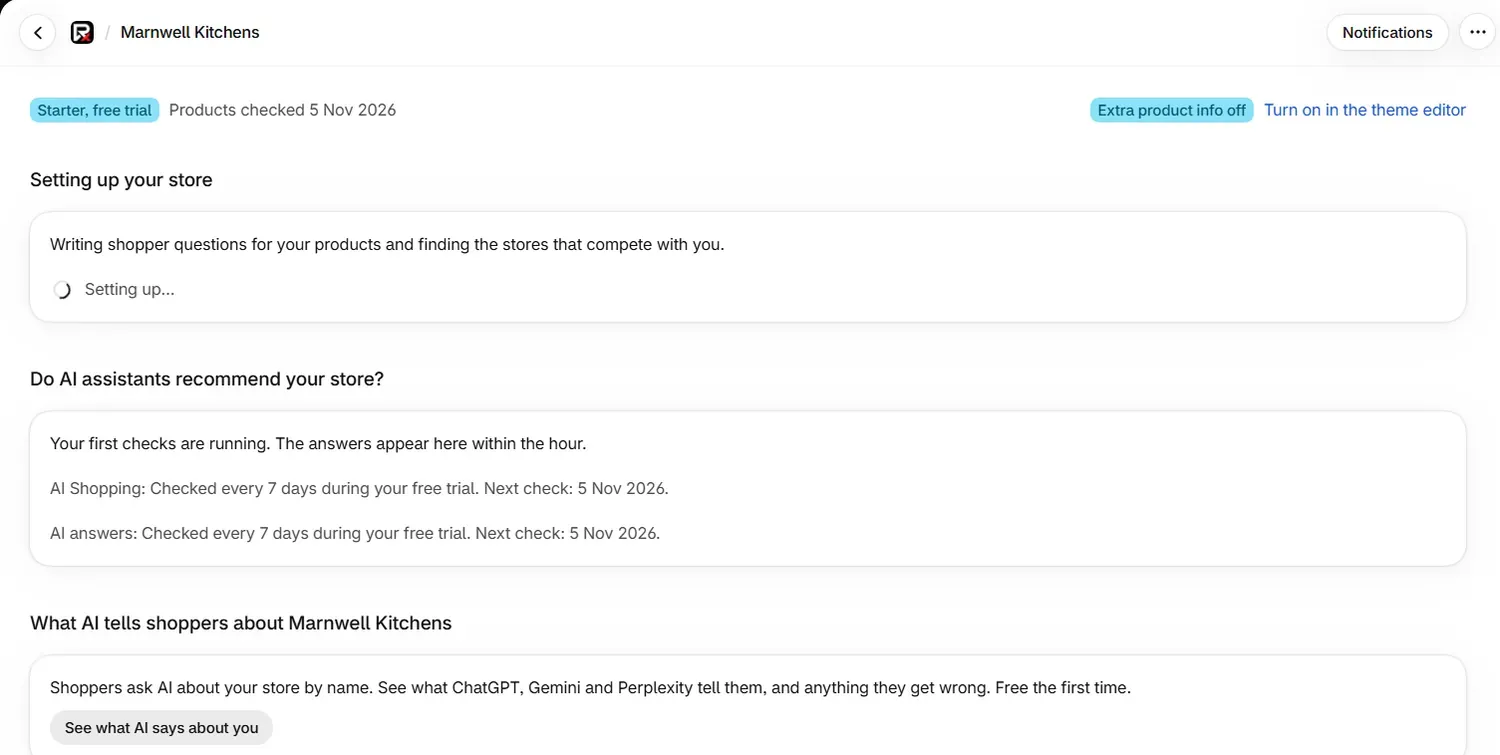
Setup does the following:
- Monitors your products. It picks up to 10, starting with best sellers from your largest collection, or your newest products. It leaves out gift cards, inactive products and products not on the Online Store.
- Writes shopper questions from those products, within your plan's limit.
- Finds the stores that compete with you, up to 5.
- Sets your schedule to every week, which fits every plan. You can change it in Settings.
- Chooses where to look. Google AI Mode starts switched off in Germany, France and the Netherlands, where it showed no products in our tests. You can change this in Settings.
- Runs your first check, on up to 10 shopping questions in each place and up to 5 store questions on each assistant.
Writing the questions and finding competitors uses none of your credits. The first check uses up to 200 credits from your trial or plan. If your store does not hold enough credits for it, setup still finishes, and your questions are checked on their schedule once credits arrive.
What if Home shows a Set up RankX AI card?
Occasionally Home shows a card called Set up RankX AI for a short time before setup begins. You can leave it, and setup finishes with the suggested products. To choose for yourself:
Review the list
The card lists up to 20 products with the first 10 ticked. Untick any you do not want. Press Choose other products to open Shopify's product picker.
Start the check
Press Start my first check. Home shows Setting up your store.
A store with no active products can still start. RankX AI checks what AI assistants say about your store, and you add products later.
What do the setup messages mean?
| Heading | Line on screen | What it means |
|---|---|---|
| Setting up your store | Writing shopper questions for your products and finding the stores that compete with you. | Setup is running. |
| Your first check | Checking how ChatGPT and AI Mode answer, with a count of what is done. | Answers are coming in. |
| Your first check | Your first check is done, or Your store is set up. | Setup has finished. |
| Your first check is on its way | Your products are saved. Many stores are starting today, so your first check will run within a day. | Nothing to do. The check runs within a day. |
| Setup did not finish | We could not finish setting up your store. Nothing was charged. | Press Try again. |
While the check runs, a table lists each Question and its Result. "showed no products for this question" means the answer had no products in it. "could not be checked this time. It is not charged." means that check failed and cost nothing. After 6 hours, any answers still missing are reported as not checked.
What should I do after setup?
- Read the forecast. Go to Settings and find How often we check your questions. On Starter after setup, our demo store read "about 2,464 credits a month" against 5,000 added. If you choose a faster schedule and the forecast passes what your plan adds, scheduled checks stop when credits run out, so choose a slower schedule or pause some questions. Credits shows how the figure is made up.
- Check your market. In Settings, confirm the Country your shoppers are in.
- Work through Fix next on Home, which shows up to three jobs, most useful first.
What does the guide on Home do?
On Free, or with no plan, Get your products into AI shopping appears once the product check has finished. It shows your progress as a count, and each step reads Done, To do or We can't tell. Press Dismiss guide to remove it.
| Step | Button |
|---|---|
| Remove your store password | Open Online Store › Preferences |
| Turn on extra product info for Google and AI | Turn on in the theme editor |
| Publish your products to the Online Store | Open Products |
| Add product categories | Choose categories |
| Add barcodes | Add barcodes |
What else is on Home?
| Section | What it shows |
|---|---|
| Status line | Your plan, when products were last checked, and whether Extra product info is on |
| Your first studio photo, on us | One free photo of a product, made from your own image |
| Do AI assistants recommend your store? | The latest answer, and when the next check runs |
| What AI tells shoppers about your store | A link to What AI says about you |
| Can be shown | How many products nothing is blocking |
| Your store in AI shopping answers | How often your store appeared. A rate shows from 10 checks of a question |
| Fix next | Up to three jobs, each with one button. Hidden while setup runs |
| Who wins your shopper questions | The top stores in each place, and yours |
| Did it work? | Changes made from the app, and products that can be shown then and now |
Common problems
| What you see | Cause | Fix |
|---|---|---|
| "Shopify is still confirming your plan. Reload this page in a minute to see it." | Shopify has not yet told the app about your plan. | Reload in a minute. |
| "Choose at least one product to start." | Every product on the card is unticked. | Tick at least one. |
| "You can monitor 5 more products. Untick 2 to continue." | The list is over your plan's limit. | Untick the number shown. |
| "Setup has already started for this store." | Setup started by itself. | Wait for Setting up your store to finish. |
| "Your first checks are running. The answers appear here within the hour." | Normal after setup. | Come back within the hour. |
What to do next
- Choose a plan if you have not already.
- Read your product check results.
- See how checks and credits work.
Questions
Do I have to set anything up after installing RankX AI?
Very little. The product check runs by itself. When you choose a paid plan, setup also starts by itself: it picks products to monitor, writes shopper questions and runs your first check.
Can I change the products setup chose?
Yes. Setup suggests up to 10 products to get you started. You can add or stop monitored products at any time under Products. See monitored products.
How long does setup take?
A few minutes. On our demo store it wrote 23 shopper questions of each kind and monitored 10 products in that time. The first check's answers then arrive within the hour.
Last updated