Bulk fixes
Fix up to 250 products at once with categories, details and search visibility, free on every plan.
A bulk fix makes one change on up to 250 products at once. It works for categories, details and Show to search engines, and it is free on every plan. Every change is read back from your store, and the whole fix can be undone together.
Before you start
- Every plan, including Free. Bulk fixes use no credits.
- A bulk fix writes to your live store, and the value you choose replaces what is there.
- To set a detail in bulk, every selected product must be in the same category.
Which fixes work in bulk?
Look for the badge Several at once in the How you fix it column on Products.
| Fix | In bulk? | How it works |
|---|---|---|
| Category | Yes | One category goes on every selected product, replacing what was there. |
| Details | Yes | One detail at a time, on products in the same category. |
| Show to search engines | Yes | Every selected product is shown to search engines again. |
| Barcodes | One product at a time | Each barcode is unique to one product or variant. See Barcodes. |
| Alt text | With a template | Templates fill empty alt text from a pattern. |
| Search titles and descriptions | With a template, or written for you | See Templates and Search titles and descriptions. |
| Fixes made in Shopify | In Shopify | Shopify's products list has its own bulk actions, and the issue page links to it. |
How do I fix many products at once?
Open the issue
Go to Products, then select Fix products beside an issue marked Several at once.
Select the products
Tick the rows you want. The checkbox in the table header selects the current page. If the issue runs to more than one page, Select all with this problem selects up to 250 across pages.
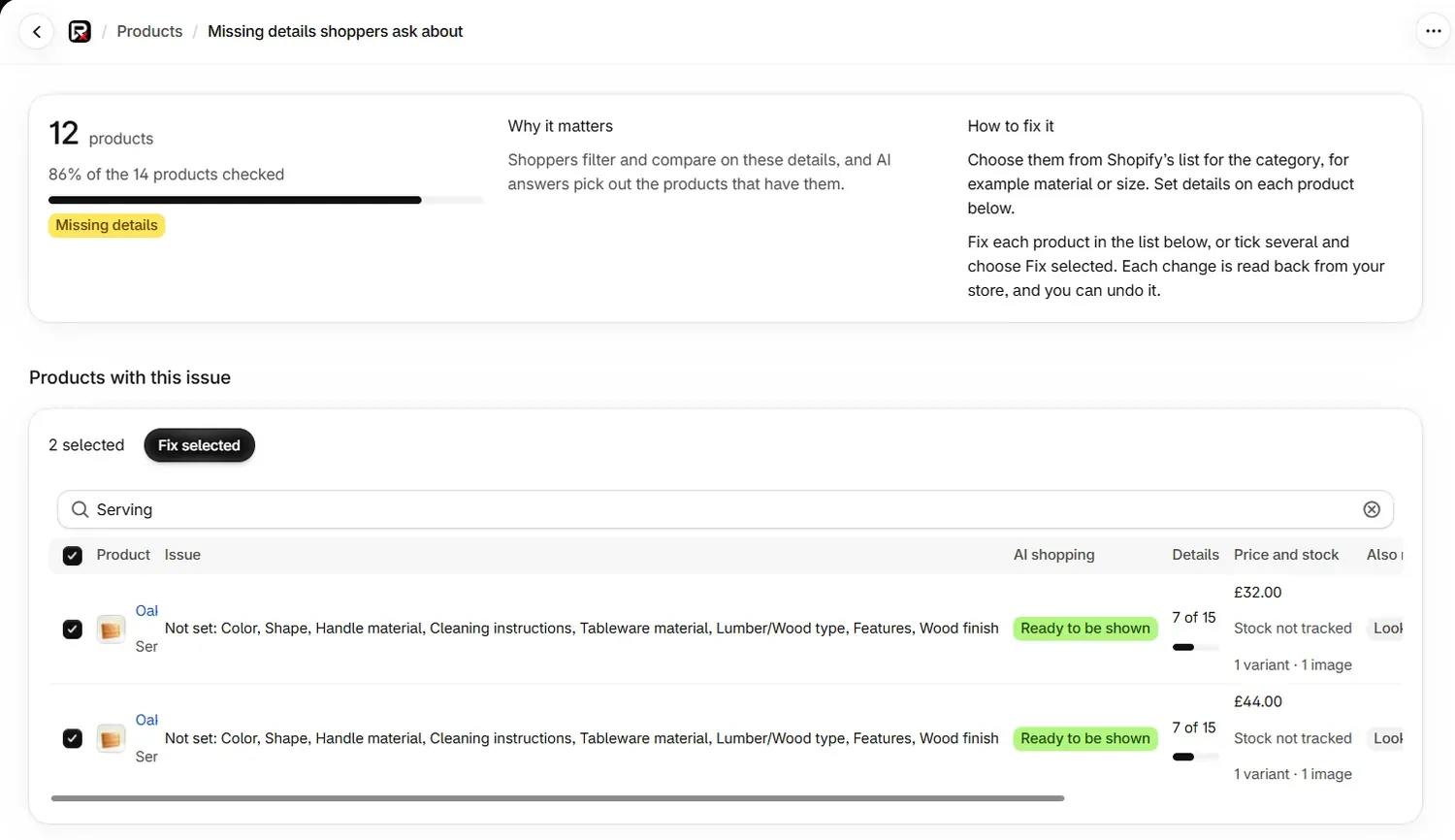
Select Fix selected
Select Fix selected, then choose the change.
- For a category, the dialog reads "Choose one category for 12 products", with your number. Search, then select Use this.
- For a detail, the dialog reads "Set one detail on 2 products", with your number. Pick the Detail and a value, then select Apply to 2 products.
- For Show to search engines, there is nothing to fill in.
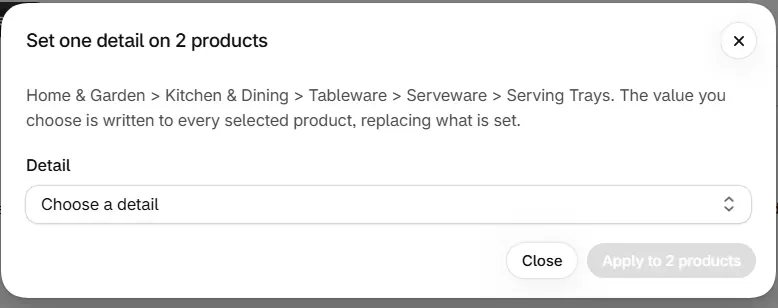
Watch the progress
Larger fixes run in the background, with a bar and a line such as "7 of 11 done. You can leave this page; the rest carries on."
Read the result
When the fix finishes, badges show how each product went. Undo all reverses the whole fix, and Close dismisses the panel.
What does the result of a bulk fix mean?
| Badge | What it means |
|---|---|
| confirmed | The change was read back from your store. |
| not yet confirmed | The change was sent, but your store did not read back the new value. Check those products in Shopify. |
| not changed | The change was refused for that product, and nothing was written to it. |
Up to five failed products are named under the badges. Any others are listed in Changes, under Settings.
If a fix ends early, the panel says how far it got: "This stopped after 7 of 11. Every change that was made is listed in Changes." (with your numbers). The products already changed stay changed, and you can undo them.
What are the limits on bulk fixes?
| Limit | What happens |
|---|---|
| 250 products in one fix | Fix these, then select the rest. |
| One running fix for each store | Start the next when the first finishes. |
| 12 bulk fixes an hour for each store | Wait a little, then start the next. |
Applying a template and selecting Undo all each count as one bulk fix.
Common problems
| What you see | Cause | What to do |
|---|---|---|
| "One fix covers up to 250 products. Fix these, then select the rest." | You selected more than 250. | Fix the first 250, then return for the rest. |
| "Another batch of changes is still running for your store." | One fix runs at a time. Nothing was changed. | Start this one when the first finishes. |
| "You have started a lot of batches in the last hour." | The limit is 12 an hour. | Wait a little, then start the next one. |
| "Select products in the same category" | A detail comes from the category, and your selection covers more than one. | Search for products in one category, then select those. |
| "This category has no details with a list of choices." | The details for this category are not lists. | Set them on each product's page in Shopify. |
| "We could not start these changes just now." | The fix could not start. Nothing was changed. | Try again in a moment. |
| Fix selected does not appear | The issue has no bulk fix. | Fix each product in the list. |
What to do next
Questions
How many products can I fix at once?
Up to 250 in one fix. Fix those, then select the rest.
Do bulk fixes cost credits?
No. Bulk fixes are free on every plan, including Free.
Can I fix barcodes in bulk?
Barcodes are fixed one product at a time, because each barcode is unique to one product or variant.
Can I leave the page while a bulk fix runs?
Yes. Larger fixes run in the background, so you can leave the page and the rest carries on.
Last updated