Install the Shopify app
Install RankX AI from the Shopify App Store, approve its permissions and open it in your Shopify admin.
You install RankX AI from the Shopify App Store, approve its permissions, and it opens inside your Shopify admin. There is nothing to download and no separate account to create. Installing is free, and the trial only starts if you choose a paid plan.
Before you start
- A Shopify store, and a login for it that is allowed to install apps.
- No RankX AI account. Installing creates one for your store.
- Every plan, including Free. You choose a plan after you install.
How do I install the RankX AI Shopify app?
Open the listing
Go to RankX AI on the Shopify App Store (opens in a new tab) and press Install.
Log in if Shopify asks
If you are not logged in, Shopify shows Log in to your Shopify store with a Store URL field. Enter your store's address and log in. If you are already logged in, Shopify takes you straight to the next step.
Read the permissions
Shopify shows Install app with the heading This app needs access to: and two groups, View staff and contributor data and View and edit store data. Press the arrow beside a group to see what it lists.
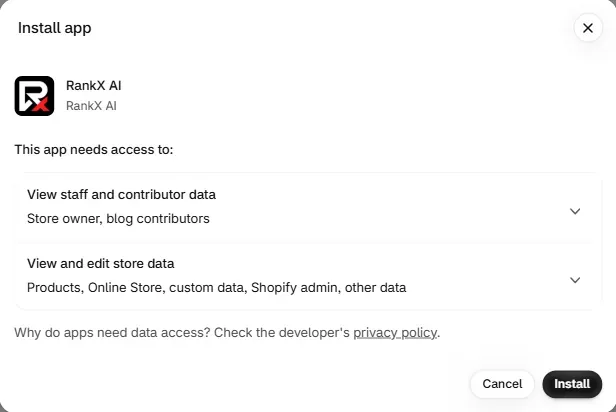
Shopify generates this wording. Permissions the app requests explains what RankX AI actually reads, including why the screen mentions the store owner and blog contributors.
Press Install
Press Install. If you press Cancel instead, nothing changes on your store.
Open the app
RankX AI opens in your Shopify admin on its Home screen. To come back later, open it from Apps in your Shopify admin.
What happens the first time the app opens?
RankX AI does these things by itself. You do not need to press anything:
- It reads basic facts about your store, such as its name, addresses, contact email, currency, time zone and billing country.
- It creates an account for your store and connects it.
- It uses your billing country as your market when that country is supported. Otherwise, Settings asks you to choose one.
- It starts the free product check, which takes about a minute.
Nothing paid runs at this stage, and no trial clock starts.
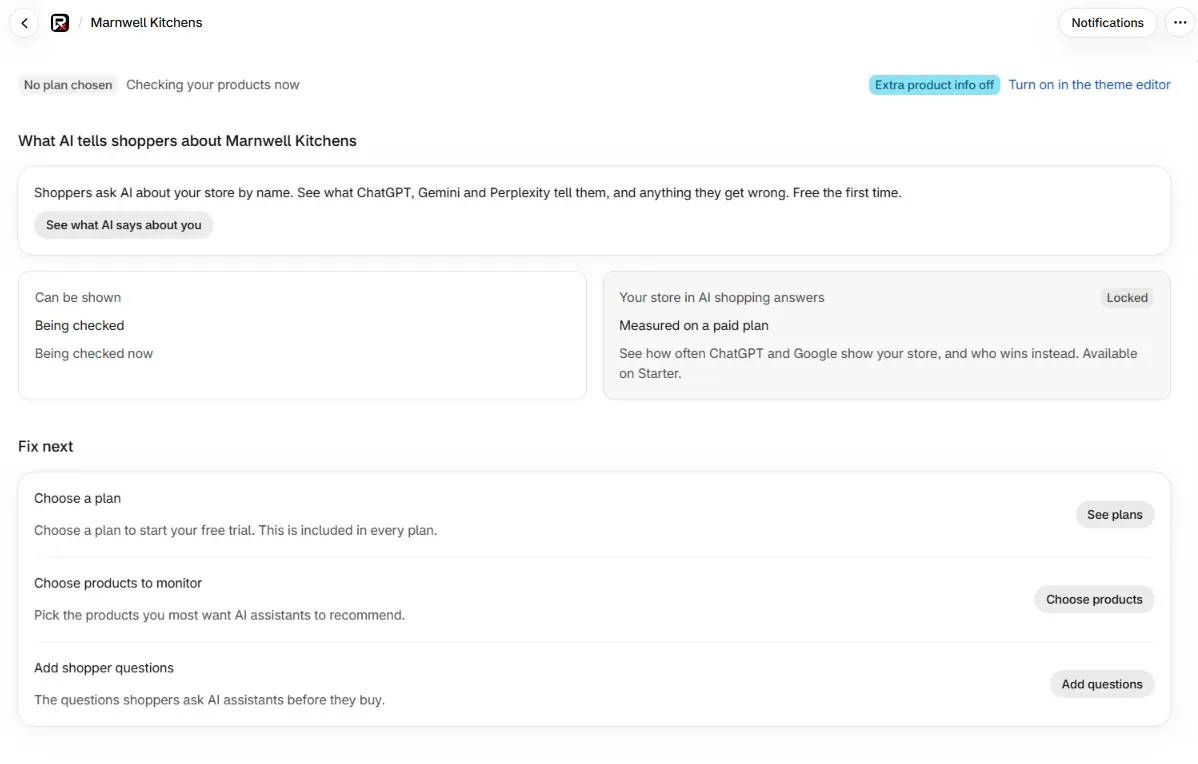
What do the labels on Home mean straight after install?
| Label | What it means |
|---|---|
| No plan chosen | You have not picked a plan yet. The free product check runs anyway. |
| Checking your products now | The first product check is running. It changes to Products checked with a date when it finishes. |
| Being checked | The Can be shown card is waiting for the same check. |
| Extra product info off | An optional theme embed is not switched on. See rich results. |
| Locked | The feature needs a plan. The card says which one. |
Common problems
| What you see | Cause | Fix |
|---|---|---|
| "Open RankX AI from your Shopify admin." | The app was opened outside Shopify. | Open it from Apps in your Shopify admin. |
| "We could not connect to your store. Please reload." | The first connection did not complete. | Reload the page. |
| "We could not set up your account. Please reload." | Creating your store's account did not finish. | Reload the page. |
| "Something went wrong on our side. Please reload." | A temporary fault on our side. | Reload the page. |
| "RankX AI is not available right now." | The app is briefly unavailable. | Try again in a few minutes. |
| "RankX AI is not available for this store." | The app could not load your store's account. | Reopen the app from your Shopify admin. If it stays, email support@rankxai.com with your store address. |
| Checking your products now stays on screen | A large catalogue takes longer. | Leave the page and come back. The check carries on without you. |
What to do next
- Follow first-time setup to see what the app does next.
- Choose a plan, or stay on Free.
- Read permissions the app requests for the full list of access.
Questions
How long does it take to install RankX AI?
A minute or two. You press Install on the Shopify App Store, approve the permissions, and the app opens in your Shopify admin. The first product check then takes about a minute.
Does installing start my free trial?
No. Nothing paid starts at install. The 7-day trial starts when you choose a paid plan, so you can look around first.
Do I need to change my theme to install the app?
No. The app installs without touching your theme. One optional step later, Extra product info, is something you turn on yourself in the theme editor.
Last updated