Connect Google Search Console
Connect Search Console inside the app, choose your site, and read clicks, searches and fix results.
Connecting Google Search Console shows the clicks and searches Google sends to your store inside the app, and whether each search listing you fix gets more clicks. RankX AI has read-only access. It only reads your Search Console data and never changes anything in your Google account.
Before you start
- Every plan, including Free. Connecting uses no credits.
- A Google account that can see your store in Search Console. If your store is not there yet, add it in Search Console with that account first.
- Store staff connect it from inside the Shopify admin.
How do I connect Search Console?
Open the Google tab
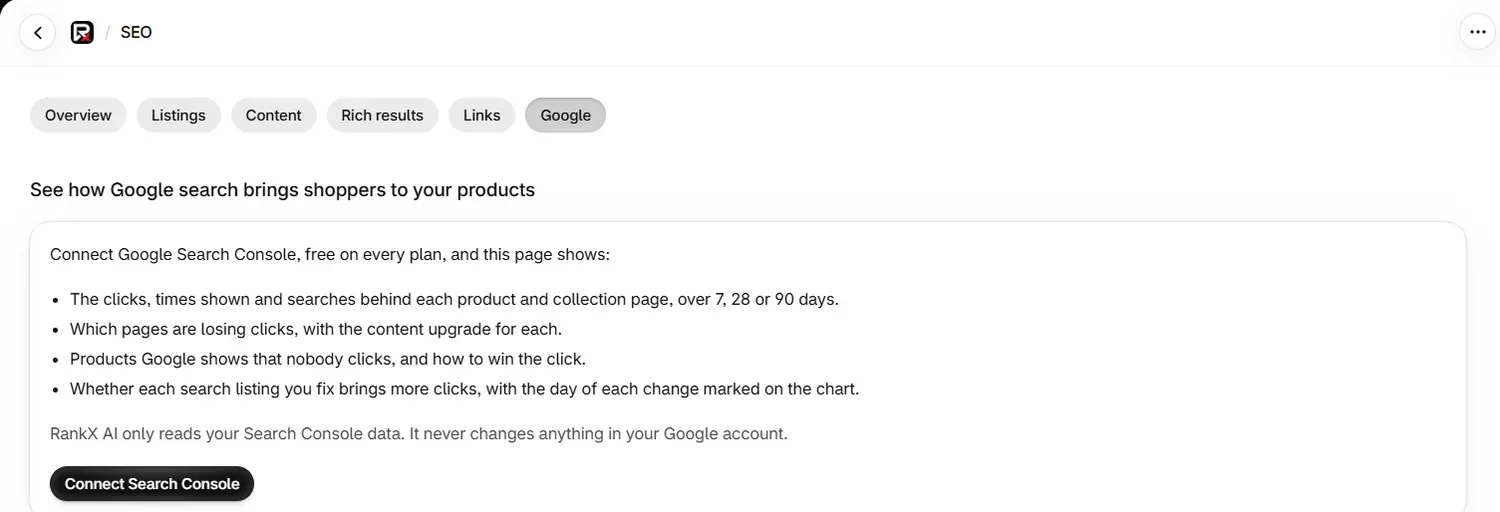
Open SEO, then the Google tab, and select Connect Search Console. Google opens in a new tab. If no tab opens, use the open Google link beside the button.
Sign in and give permission
Choose your Google account. Tick the Search Console box if Google shows one, then finish.
Go back to the app
When the tab says Search Console is connected, select Close this tab and return to RankX AI in your Shopify admin. If it says One more permission is needed, select Give permission in Google and tick the Search Console box on the next screen.
Choose your site
The Google tab updates by itself. In Search Console site, choose your store's site and select Use this site.
Wait for your first data
The tab shows Getting your data from Google. The first data usually arrives within a few minutes. Select Check again to look.
Which Search Console site should I choose?
Choose the one marked (suggested). The list shows only sites that cover your store's own addresses: its myshopify address and its primary domain, with and without www. A site marked (whole domain) is a domain property, which also covers subdomains. Domain properties on your primary domain come first, then https sites, then http, with the myshopify address last.
If the Google account has other sites, the tab says how many are not listed because they do not cover your store's address.
When does the data arrive?
Choosing a site starts a first load of up to 16 months of history, and the report then updates every night. Search Console reports about two days late, so the most recent days fill in later.
What does the report show?
The Google tab compares your chosen period with the same number of days before it. Choose 7 days, 28 days or 90 days.
| Section | What it shows |
|---|---|
| Clicks from Google | Clicks in the period |
| Times shown in Google | How often your pages appeared |
| Clicked when shown | Clicks as a share of times shown |
| Average position | Your average place in results. Lower is better |
| Clicks by day | A chart, with dashed lines on the days you changed a listing |
| Results of your search listing fixes | Each page you changed in Listings, compared before and after |
| Top searches | Your 25 top searches |
| Top product and collection pages | Your 10 top pages |
| Pages that lost the most clicks | 10 pages, each with Upgrade this page to write a content upgrade |
| Products Google shows that nobody clicks | Products shown many times with no click, with Improve title and description when the average position is 10 or better |
How do I read the results of my fixes?
Results of your search listing fixes compares equal periods of up to 28 days each, starting 14 days after the change. It covers the last 120 days and the latest change on each page, up to 25 rows. It is an observation of what happened to that page, and other things can move clicks too.
| Verdict | Meaning |
|---|---|
| More clicks | Clicks rose by more than normal day-to-day change |
| Fewer clicks | Clicks fell by more than normal day-to-day change |
| About the same | The difference is within normal change |
| Too early | The period after the change is not long enough yet |
| Too little data | Fewer than 30 impressions across both periods |
| Not measured | No comparison could be made for this page |
How do I disconnect Search Console?
- At the foot of the Google tab, select Disconnect Search Console.
- Select Disconnect, or Keep connected to change your mind.
Disconnecting removes the Search Console data RankX AI has stored for this store and gives up its access at Google. That access belongs to the Google login, so if another store uses the same Google account, connect it again there.
Choosing a different site also removes the stored data, then loads the new site's history from the start.
Common problems
| What you see | Cause | What to do |
|---|---|---|
| One more permission is needed | The Search Console box was not ticked | Select Give permission in Google and tick the box |
| This link has expired | Connection links work for 10 minutes | Select Connect Search Console again |
| Search Console was not connected | The Google screen was cancelled or did not finish | Select Connect Search Console again |
| "None of the sites in" your account "cover" your address | That Google account has no site for this store | Add your store to Search Console with that account, or select Use a different Google account |
| Reconnect Search Console | Google no longer accepts the access | Connect again to keep your data up to date |
| Choose the site for this store | The site connected before does not cover your store's address | Choose a site from the list |
| "The latest update from Google did not finish." | The nightly update stopped | Nothing. RankX AI tries again every night |
| Not shown yet | Google has not reported that figure yet | Check back after the first data arrives |
| "Product names could not be read from your store just now" | The store did not answer | Pages are listed by address until the next read |
What to do next
- Edit your search titles and descriptions
- Upgrade a page that is losing clicks
- Go back to the SEO score
Questions
Can RankX AI change anything in my Google account?
No. RankX AI has read-only access to your Search Console data. It never changes anything in your Google account.
Does connecting Search Console cost anything?
No. It is free on every plan, including Free, and it uses no credits.
Why does my data stop two days ago?
Search Console reports about two days late, so the report ends on the latest day Google has reported. The most recent days fill in later.
What happens when I disconnect?
RankX AI removes the Search Console data it stored for your store and gives up its access. If two stores use the same Google account, the other store needs connecting again.
Last updated