AI-written blog posts
Write, review, improve and publish AI blog posts on your Shopify blog.
RankX AI researches and writes a blog article for your store, and it waits for your review before anything goes on your blog. You choose the topic and how much of the shape you want to control. You then improve it if you wish, and publish it, schedule it or save it as a draft.
Before you start
- A paid plan or the trial. On Free, the Blog page shows your articles and ideas, and writing is available on Starter and above.
- Credits for the length you choose: Short 250, Standard 350, Long 450. The app shows the live price on the button.
- A blog on your store. If you have none, enter a Blog name on the Blog page and select Create blog, which is free.
Should I choose Quick or Guided?
Both cost the same, and both end with an article for you to review.
| Quick | Guided | |
|---|---|---|
| What happens | RankX AI chooses the title and sections and writes straight away | After the research, you choose the title and shape the sections, then it is written |
| Time | Ready to review in about 10 minutes | The plan is ready in a few minutes, and the article about 8 minutes after you approve it |
How do I write an article?
Start the article
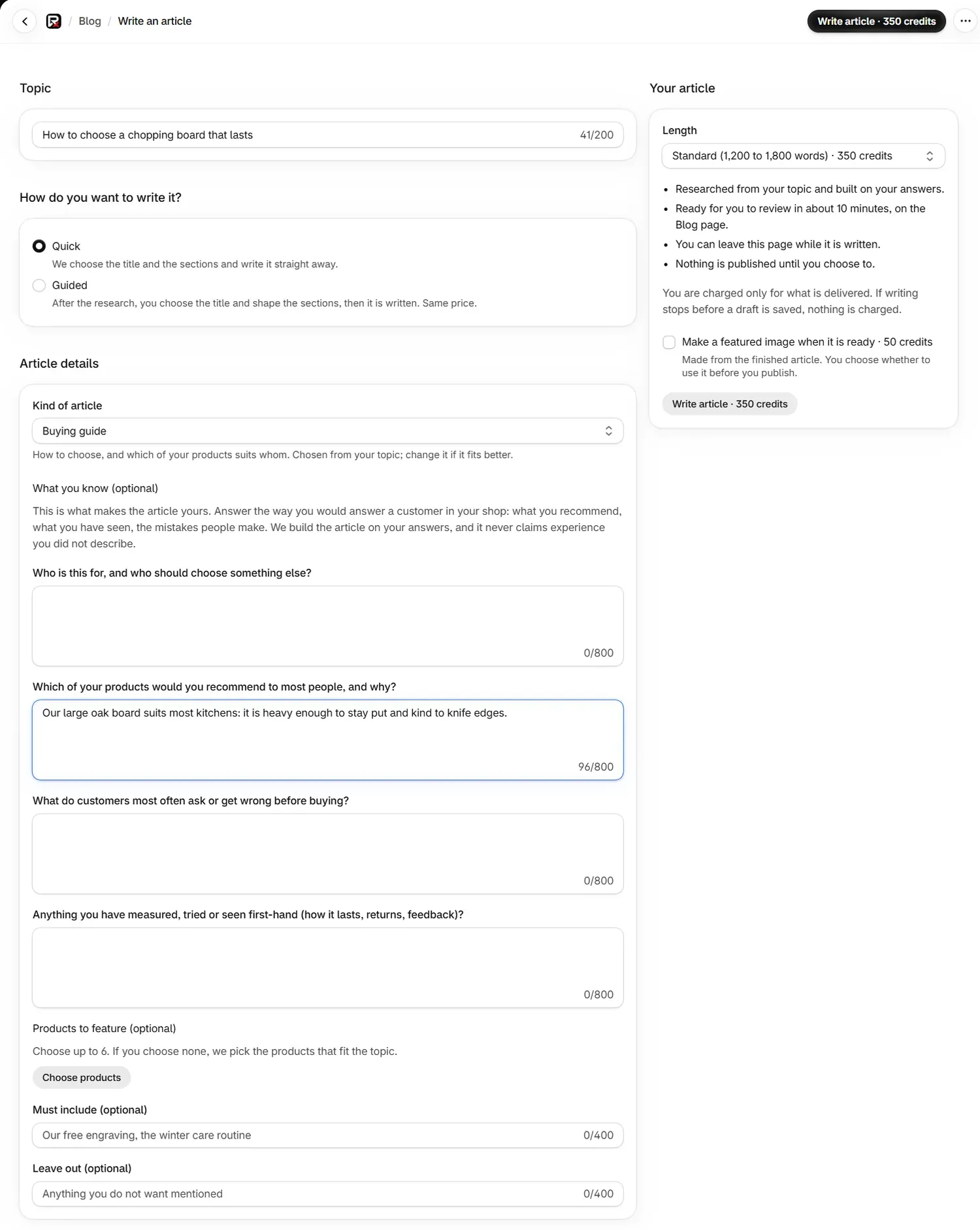
Open Blog and select Write an article. You can also select Write about this beside an idea in Ideas from your buyers' questions, or Write an article about it on a product's page.
Enter the topic
Type the Topic, up to 200 characters. If the topic is already on your blog, the app tells you and you can carry on.
Choose Quick or Guided
Pick one under How do you want to write it?
Add what you know
Check Kind of article, which is chosen from your topic. Answer the questions under What you know (optional) the way you would answer a customer in your shop. The article is built on your answers and never claims experience you did not describe.
Set the details
Under Products to feature (optional), choose up to 6, or leave it empty and the products that fit the topic are picked for you. Use Must include (optional) and Leave out (optional) for anything specific.
Choose the length and start
In Your article, choose Length. Tick Make a featured image when it is ready · 50 credits if you want one. Select Write article. You can leave the page while it is written.
| Length | Words | Credits |
|---|---|---|
| Short | 700 to 1,000 | 250 |
| Standard | 1,200 to 1,800 | 350 |
| Long | 2,000 to 3,000 | 450 |
| Kind of article | Use it for |
|---|---|
| Buying guide | How to choose, and which of your products suits whom |
| Comparison | This or that: which suits whom |
| How-to or care guide | Using, caring for, fitting or sizing a product |
| Gift guide | Gift ideas from your range, by person or budget |
| Behind the product | How you choose, source or make what you sell |
| Answer a customer question | One question your customers ask, answered properly |
How do I review a Guided plan?
When the research is done, a card on the Blog page says the plan is ready. Select Review the plan soon, because the Blog page lists runs from the last two days.
- Under the title section, pick a suggested title, select Write my own, or select Let the writer choose. Suggest other titles gives you two more sets.
- Under Sections, rename, reorder or remove sections, or select Add a section, up to 12. Keep at least one heading.
- Add What you know about this (optional) to any section, and feature up to 3 products in it.
- Select Write the article.
Reviewing the plan costs nothing extra, because the article's credits pay for it. If a plan waits for a few hours, those credits are held again when you approve it, so keep enough in your balance.
What happens while an article is written?
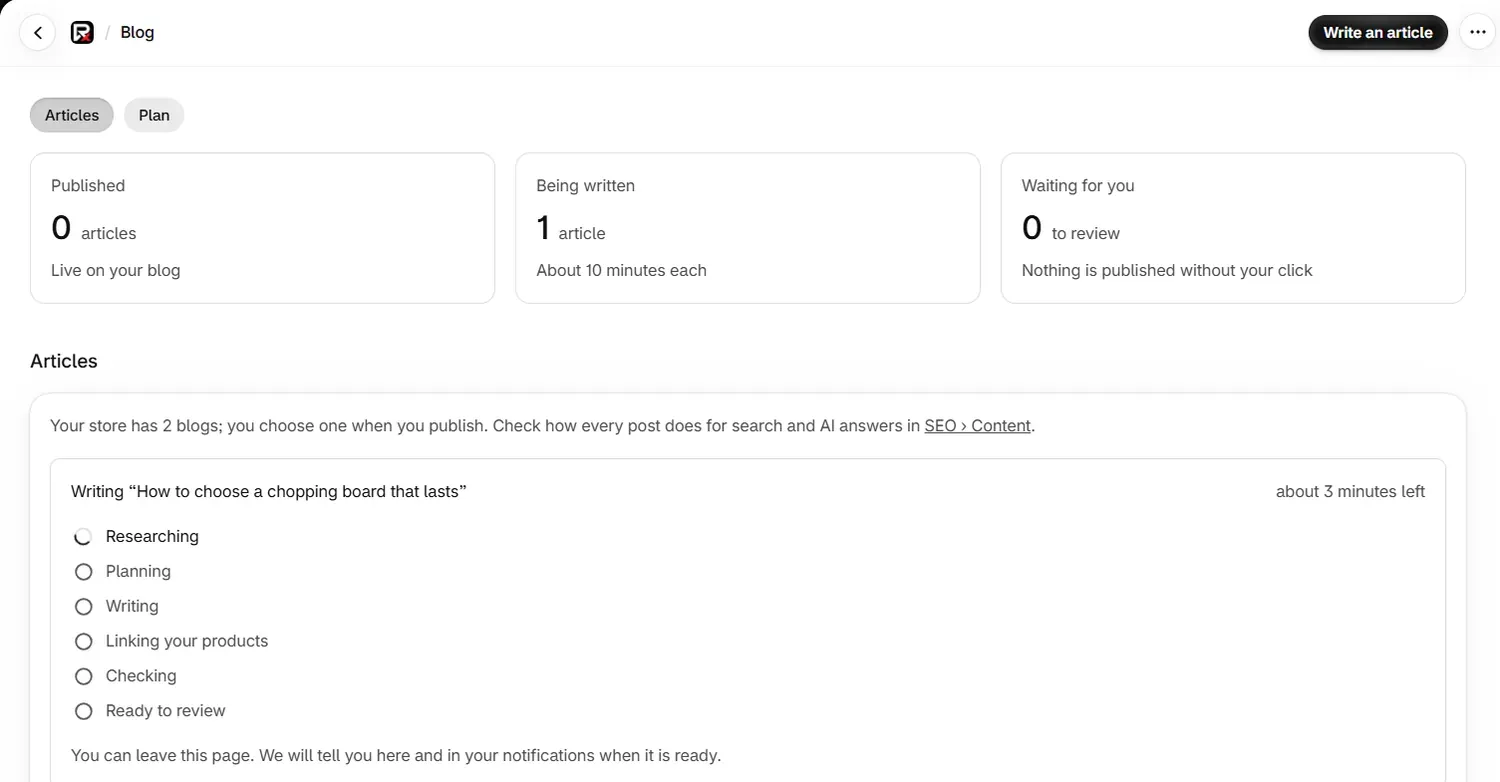
A card on the Blog page updates by itself. You can leave the page, and the app tells you here and in your notifications when it is ready.
| Step | What it does |
|---|---|
| Researching | Reads search results and finds the questions shoppers ask |
| Planning | Plans the sections |
| Writing | Writes the sections and fixes problems before you see them |
| Linking your products | Adds links to your store and cites sources |
| Checking | Checks claims against your store and sources |
| Ready to review | The article is finished |
Starts when the article before it is written means your article is queued behind another one.
What does each article state mean?
| State | Meaning |
|---|---|
| Planned | Waiting to start |
| Being written | Writing is in progress |
| Ready for review | Finished and waiting for you |
| Changes requested | Written and saved, with something for you to look at. You can improve it or publish it as it is |
| Approved | You have published it or saved it as a draft |
| Scheduled | It will show on your blog on the date you chose |
| Publishing… | It is going to your store |
| Published | It is live on your blog |
| Draft on your blog | It is on your blog, hidden from shoppers |
| Stopped | The run ended. Start it again with Write an article |
| Cancelled | It was cancelled |
The table on the Blog page also shows Checks, such as Search ✓ or Search: 2 to check, and Search clicks over 28 days once the post is live and Search Console is connected.
How do I review an article?
Open the article from the Blog page. The side column has Contents, Publish, Checks, Improve this article and Title and search.
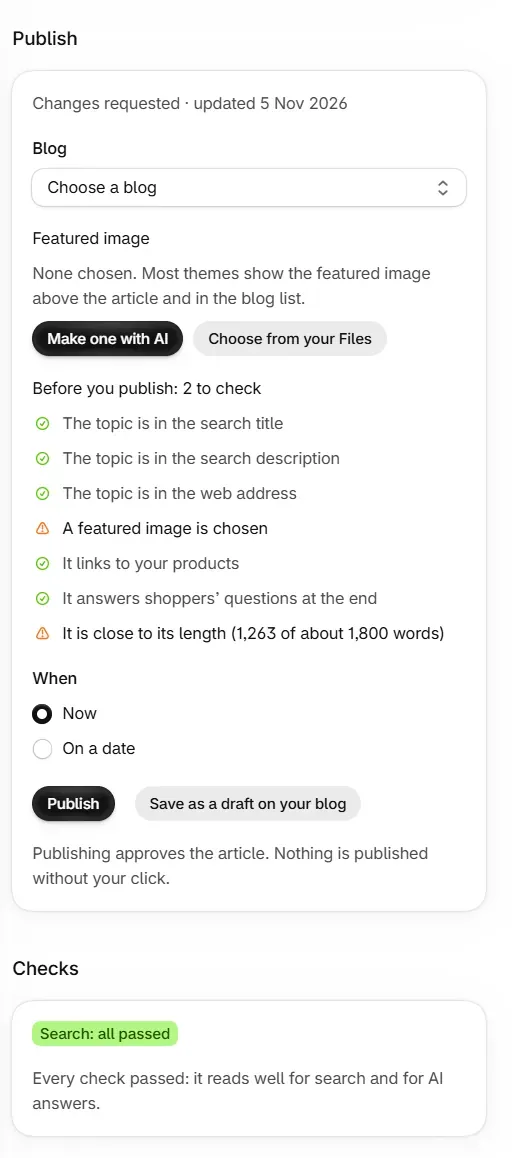
Checks never block publishing. An article marked Changes requested can still be published, and it can show Search: all passed beside that state. Each check that needs a look comes with its fix:
| Check | What to do |
|---|---|
| The article is shorter than its target length | Ask for a longer version under Improve, or add a section in your own words |
| The writing is harder to read than the threshold allows | Ask for shorter sentences and simpler words under Improve |
| Too much of the text repeats itself | Ask for the repeated points to be said once under Improve |
| Not enough links to your own pages | Feature products when you write, or add links in the post editor after publishing |
| No external sources were cited | Add a source a shopper would trust, or ask for one under Improve |
| Your primary keyword is missing from a key position | Put the main topic words in the title and the first paragraph |
| The opening does not answer the question directly | Rewrite the first section so its first sentence answers the question |
| The opening does not define the topic | Rewrite the first section so it opens by saying what the topic is |
| No headings are phrased as questions | Phrase a few headings as the questions shoppers ask |
| No FAQ pairs were included | Add a short questions-and-answers section at the end |
| No verified statistic was included | Add one figure from a source you trust, with its source |
| The writing contains phrasing that reads as AI-generated | Ask for plainer wording under Improve |
| A figure in the article cannot be traced to a source | Remove the figure, or name where it comes from |
| Too similar to content that already exists | Add what only your store knows: what you have seen, tested or recommend |
How do I change the wording?
The app has no rich text editor. The wording changes in one of two ways: through Improve this article while the article waits for review, or in Shopify's editor after publishing. Publish and Save as a draft on your blog both approve the article, and Improve this article closes once it is approved.
| Action | How it works | Credits |
|---|---|---|
| Change the article | Say what should change across the whole article. It takes about two minutes | 50 |
| Rewrite the section | Pick a section and say how it should change | 5 |
| Undo the last change | Puts the article back | Free |
A preview shows Now and After the change for each section. Select Keep the change or Discard. You are charged when the change is ready to review, and keeping or discarding it is free. If it cannot be made, nothing is charged. The checks run again after you keep a change.
A section with a table, image, quotation or code is listed with a note to change the whole article, so that part stays safe. A new section suggested by a change is shown for you to copy into the post after publishing.
While the article waits for review, you can also edit Title, Search title and Search description in Title and search. After approval, change the search fields in SEO Listings.
How do I publish an article?
Choose the blog
If your store has more than one blog, choose it in Blog.
Add a featured image
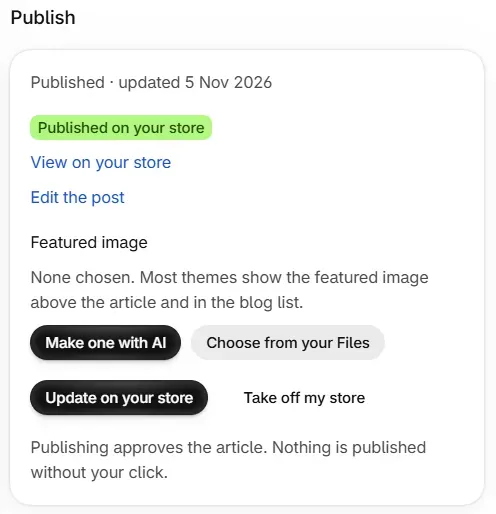
Select Make one with AI or Choose from your Files, and describe the image in Alt text. See Image studio and featured images.
Read Before you publish
The list names what is ready and what is left to check, such as the topic in the search title or the article's length. Nothing on it stops you.
Choose when
Under When, pick Now, or On a date and set a date and time in your own time zone, at least a few minutes from now.
Publish
Select Publish, Schedule or Save as a draft on your blog.
Publishing is free. RankX AI sends the title, text, summary, author name, address, tags, search title and description, and featured image with its alt text, then reads the article back to confirm each one. Product cards for featured active products are added to the text at this point, with an image, title and View product link, so they appear on your blog and not in the app's preview.
| Button | What it does |
|---|---|
| Publish, Publish the draft | Puts the article on your blog |
| Update on your store | Sends the stored article to your blog again |
| Schedule, Change the date | Sets or moves the date |
| Publish now, Cancel the schedule | Shown while an article is scheduled |
| Save as a draft on your blog | Saves it to your blog, hidden from shoppers |
| Take off my store | Hides a live article. It stays on your blog as a draft, and Publish the draft puts it back. This is free |
| View on your store, Edit the post | Open the article on your store or in Shopify's editor |
How do I edit a published article?
Edit a published article in one place only. Update on your store sends the article stored in RankX AI again, so it replaces changes made in Shopify's editor. Once you start editing in Shopify, keep making changes there with Edit the post.
What does a blog post cost?
| Action | Credits |
|---|---|
| Write an article, Short, Standard or Long | 250, 350 or 450 |
| Guided title suggestions and plan review | Free |
| Change the article | 50 |
| Rewrite the section | 5 |
| Each featured image | 50 |
| Publish, schedule, take off the store, create a blog | Free |
You are charged only for what is delivered. If writing stops before a draft is saved, nothing is charged.
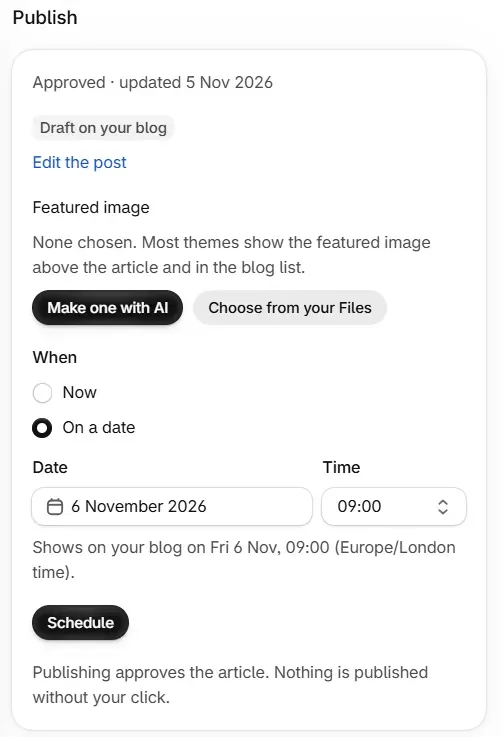
On a date shows the date, the time and your time zone. After you select Schedule, the panel shows Scheduled with Change the date, Publish now and Cancel the schedule. Cancelling leaves the article as a draft on your blog.
Each published article is listed under Settings, Changes, in Every change, with Open article. Take off my store on the article's page takes it down.
Common problems
| What you see | Cause | What to do |
|---|---|---|
| "An article is already being written for your store." | One article is in progress | Start the next one when it is ready |
| "The research found no sources the article could cite" | The topic gave nothing to cite | Nothing was charged. Try a more specific topic |
| "Writing did not start." or "The article could not be finished." | The run stopped | Start again with Write an article |
| "Your store has not finished setting up yet" | First-time setup is still running | Reopen the app to finish setup |
| "Articles are written in English for now" | Your store's language is not one offered for articles | The article is written in English |
| "Choose the blog to publish to." | The store has several blogs | Choose one in Blog |
| "Only an article waiting for your review can be changed here." | The article is approved | Edit it in Shopify's post editor |
| "Publishing did not complete. You can try again." | The publish did not finish | Select the button again |
| "Your store did not confirm the article." | The read back did not finish | Check your blog before publishing again |
| "This article is scheduled. Cancel the schedule first." | The article has a date | Select Cancel the schedule |
| "Your plan does not include writing articles." | You are on the Free plan | Choose a plan |
What to do next
Questions
Can I publish an article marked Changes requested?
Yes. Checks never block publishing. Changes requested means the article was written and saved with something for you to look at, and you can improve it or publish it as it is.
Can I edit the words of an article in the app?
The app has no rich text editor. Change the wording through Improve while the article waits for review, or in Shopify after publishing.
Does anything go live without me?
No. Nothing is published without your click. Publishing and saving as a draft on your blog both need you to select the button.
What happens if I edit a published article in Shopify and then use Update on your store?
Update on your store sends the article stored in RankX AI again, which replaces what is on your blog. Edit a published article in one place only.
What does a blog post cost?
250 credits for Short, 350 for Standard and 450 for Long. Quick and Guided are the same price. If writing stops before a draft is saved, nothing is charged.
Last updated