Monitored products
Choose products to watch in AI answers, with price, stock and a comparison against other stores.
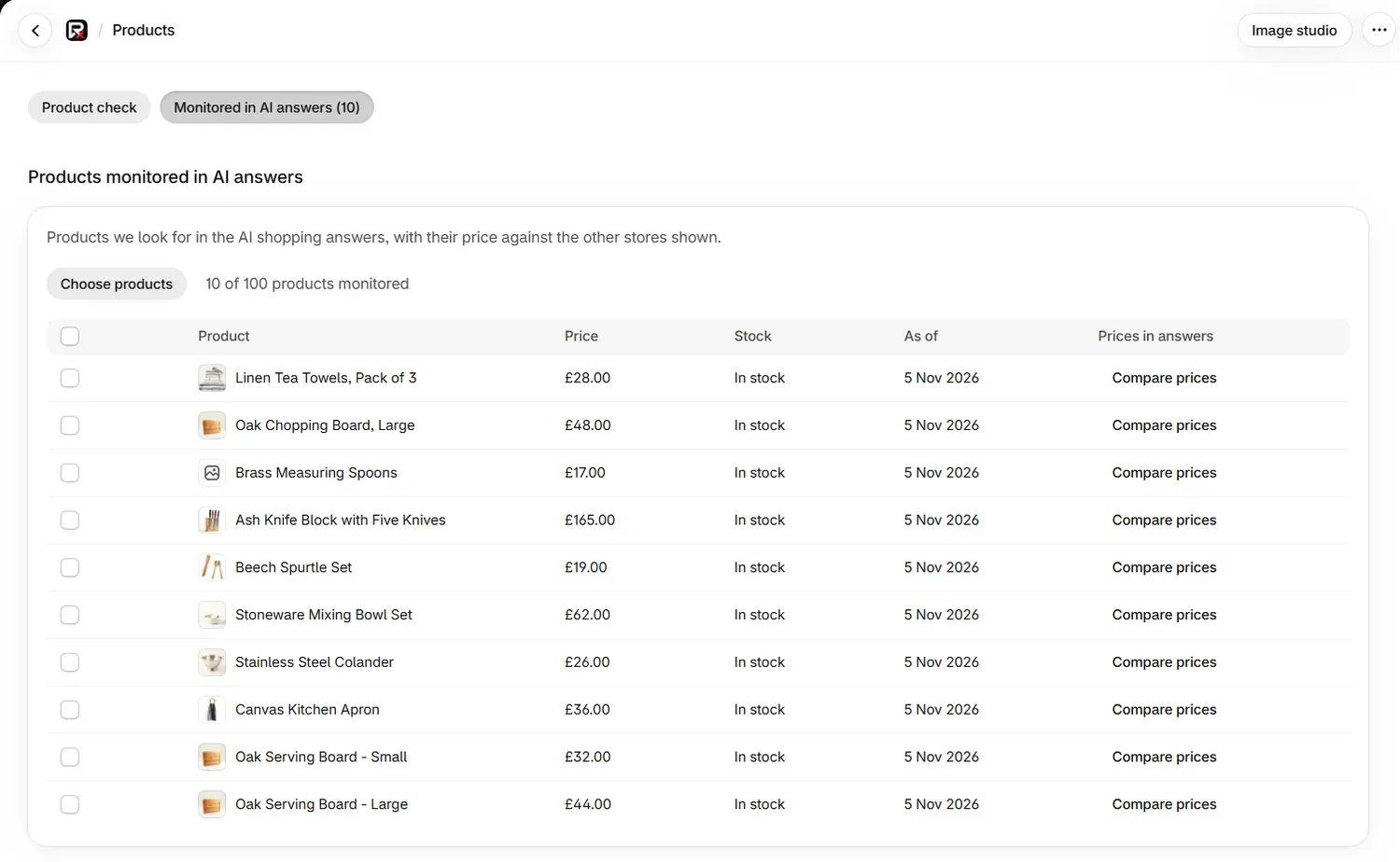
Monitored products are the products you chose for RankX AI to look for in AI shopping answers. For each one you see its price and stock, and how its price compares with the other stores shown. You pick the set, starting with the products that matter most to you. Setup suggests up to 10 to get you going.
Go to Products and select Monitored in AI answers. The number in brackets is how many you monitor.
Before you start
- Plan: Choose products needs Starter, Growth, Pro or the free trial. On Free, the free check monitors up to 10 products if none are monitored.
- Credits: none. Adding and removing products is free.
- Who sells it: only products your own store sells can be monitored.
What does monitoring a product do?
A monitored product is what the app matches against the product cards in AI answers. It is used in five places:
- The Your product appeared result in a question's history.
- The summary line "The products you sell were in 3 of 20 answers".
- Suggest questions, which writes questions from these products.
- Write a better listing, where you choose one of them.
- Did it work?, which compares changed and unchanged monitored products.
Matching is by product, so a card from another store selling the same product can match. A question's badges show separately whether your store was the seller. See Read your results.
How do I add products?
Open the list
Go to Products, then select Monitored in AI answers.
Choose products
Select Choose products. Shopify's product picker opens.
Add them
Pick your products and confirm, up to 250 at a time. You will see "Products added", and the meter updates, for example "10 of 100 products monitored".
When one place is left on your plan, the picker lets you choose one product.
How many products can I monitor?
| Plan | Products monitored |
|---|---|
| Starter | 100 |
| Growth | 250 |
| Pro | 500 |
When you reach your limit, a line under the list names the plan that allows more, such as "You are using all 100 products on Starter. Growth allows 250 products."
If you move to a smaller plan, the first products up to its allowance stay monitored and the rest are paused. A note gives the count of products beyond your plan's allowance, and says they stay on your list and are not checked. To include them, stop monitoring another product (the note calls this "Untrack") or move to a larger plan.
How do I stop monitoring a product?
Select the products
Tick the box beside each product in the list.
Stop monitoring
Select Stop monitoring. You will see "Stopped monitoring one product", or the number you selected. Their history stays.
This changes nothing on your Shopify product, and it frees a place straight away.
What do Price, Stock and As of mean?
Price and stock come from your own store, and not from AI answers.
| Column | What it shows |
|---|---|
| Product | The product's image and title |
| Price | The lowest variant price |
| Stock | One of the labels below |
| As of | When your store last gave us this row |
| Prices in answers | Compare prices, which opens the comparison |
| Stock label | Meaning |
|---|---|
| In stock | Available to buy |
| Limited stock | Available in small numbers |
| Out of stock | Not available now |
| Sold out | Sold out at your store |
| Pre-order | Available to order ahead of release |
| On backorder | Can be ordered while stock is on its way |
| Discontinued | No longer sold |
Price and stock refresh nightly, on nights when your checks run, so the As of date tells you how fresh a row is. The refresh runs on its own, and it skips a store with no activity for 90 days.
A question's history also uses stock, with a line such as "Out of stock that night (as of 4 Nov 2026)". That helps you see whether a product was missing from an answer because it could not be bought.
How does Compare prices work?
Select Compare prices beside a product. The dialog is headed Prices and ratings next to the product's title, and shows Your price with the other stores' prices from the answers that product was in.
| What you see | Meaning |
|---|---|
| The price range of other stores | The range they sold at, in your currency |
| "Not enough prices yet" | Fewer than 3 other stores' prices in your currency appeared in those answers |
| "Your rating: 4.6 stars from 120 reviews" with the other stores' typical rating | Your rating beside the median of the rated products in those answers |
| "This product has no rating from a review app, so there is nothing to compare." | No review app supplies a rating for this product. A review app from the Shopify App Store collects reviews and shows the rating that shopping answers read |
| "We could not read this product's rating from your store just now." | The rating did not load. Try again later |
Comparing prices is free.
Common problems
| What you see | Cause | Fix |
|---|---|---|
| Choose products is switched off | You are on Free, have no active plan, or have used all your places | Follow the line under the button, or stop monitoring a product |
| "You are monitoring all 100 products your plan includes." | Your places are full | Stop monitoring one, or change plan |
| "Add at most 250 products at a time." | You chose more than 250 | Add them in smaller batches |
| "That product is sold on another site, so AI answers name that retailer rather than your store." | Only products your store sells can be monitored | Choose products your store sells |
| "Your store no longer has those products, so nothing was added." | They were deleted from Shopify | Choose products that exist now |
| "Some products could not be added." | Part of the batch failed | The ones added are listed. Add the others again |
| "Shopify's product picker did not open. Please try again." | The picker failed to load | Reload the app and try again |
| "Your store is not connected. Reopen the app from your Shopify admin." | The app lost its session | Open the app again from your Shopify admin |
What to do next
- Add shopper questions from these products
- See whether a change made a difference
- Compare your store with competitors
Questions
How many products can I monitor?
Starter includes 100 products, Growth 250 and Pro 500. You choose which ones, so a large store pays the same as a small one.
Does monitoring a product cost credits?
No. Adding a product, removing it and comparing prices are all free. Credits are used by the checks of your shopper questions.
What happens if I stop monitoring a product?
The product stops being looked for in new checks, and its history stays. Your Shopify product is not changed.
What happens to my products if I move to a smaller plan?
The first products up to your new allowance stay monitored. The others are paused: they stay on the list and are not checked until you make room or move to a larger plan.
Last updated