Auto-fix templates
Fill empty search titles, descriptions and alt text from a pattern with variables, previews and rules.
A template fills empty search titles, search descriptions and image alt text from one pattern, such as the product title followed by your store name. Only empty fields are filled, so anything you wrote yourself stays as it is. Templates are free on every plan, and every change can be undone.
Before you start
- Every plan, including Free. Templates use no credits, and neither does applying them automatically.
- Templates live in the SEO section: open SEO, then Listings, then select Fill in bulk.
- Product templates apply to active products.
How do I fill empty fields with a template?
Open Templates
Go to SEO, open the Listings tab and select Fill in bulk.
Choose what to fill
Pick a target in What to fill. Each one shows how many fields are empty in search, and the list opens on the target with the most.
Write the template
Type in Template, or keep the suggested pattern. Select a variable to add it where the cursor is. Use Shopify's save bar to save the template.
Check the preview
The table below shows what each field would become. Nothing is written yet, and the preview is free.
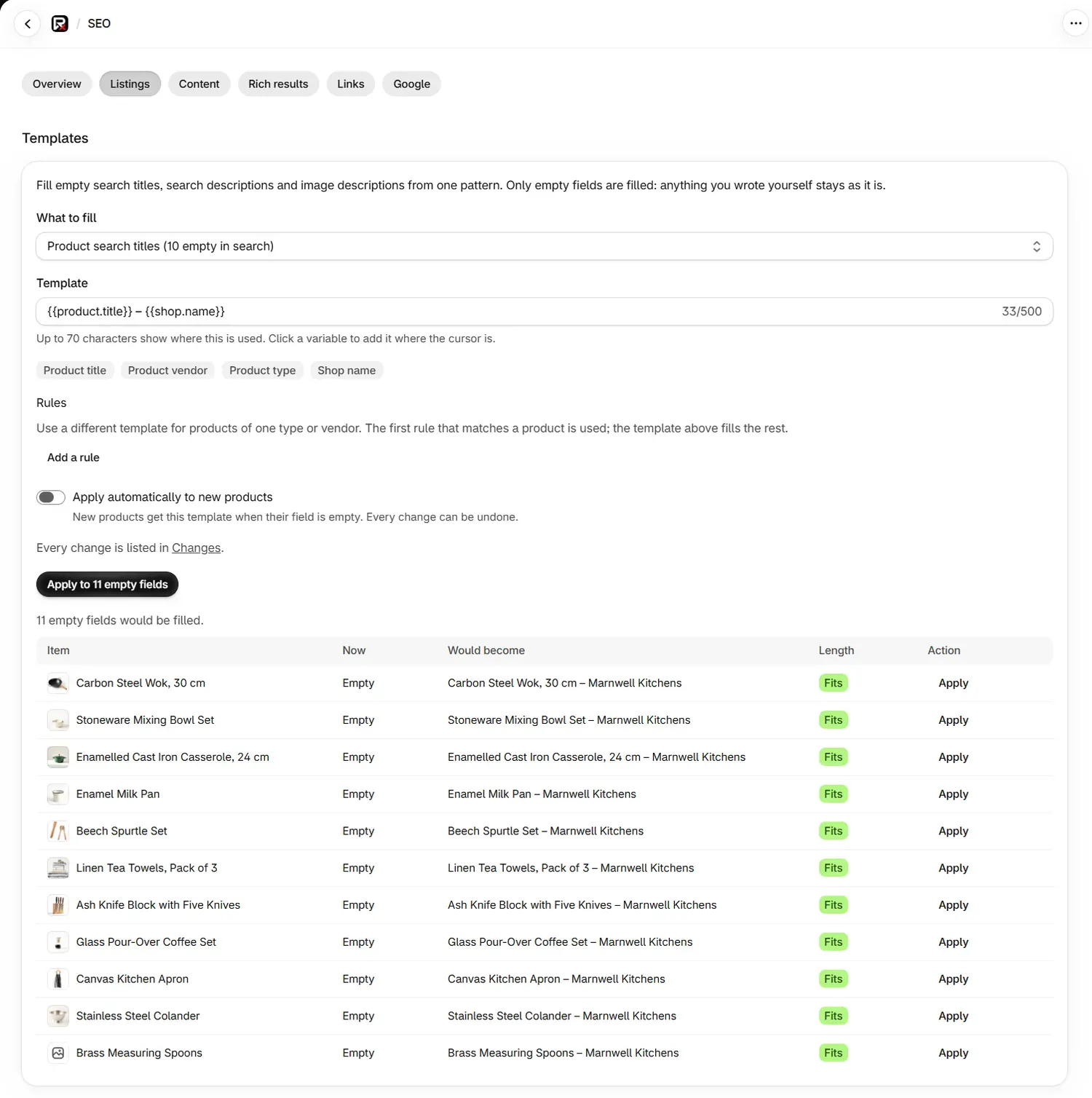
Apply
Select Apply to the number of empty fields, or Apply on one row. You can leave the page while it runs.
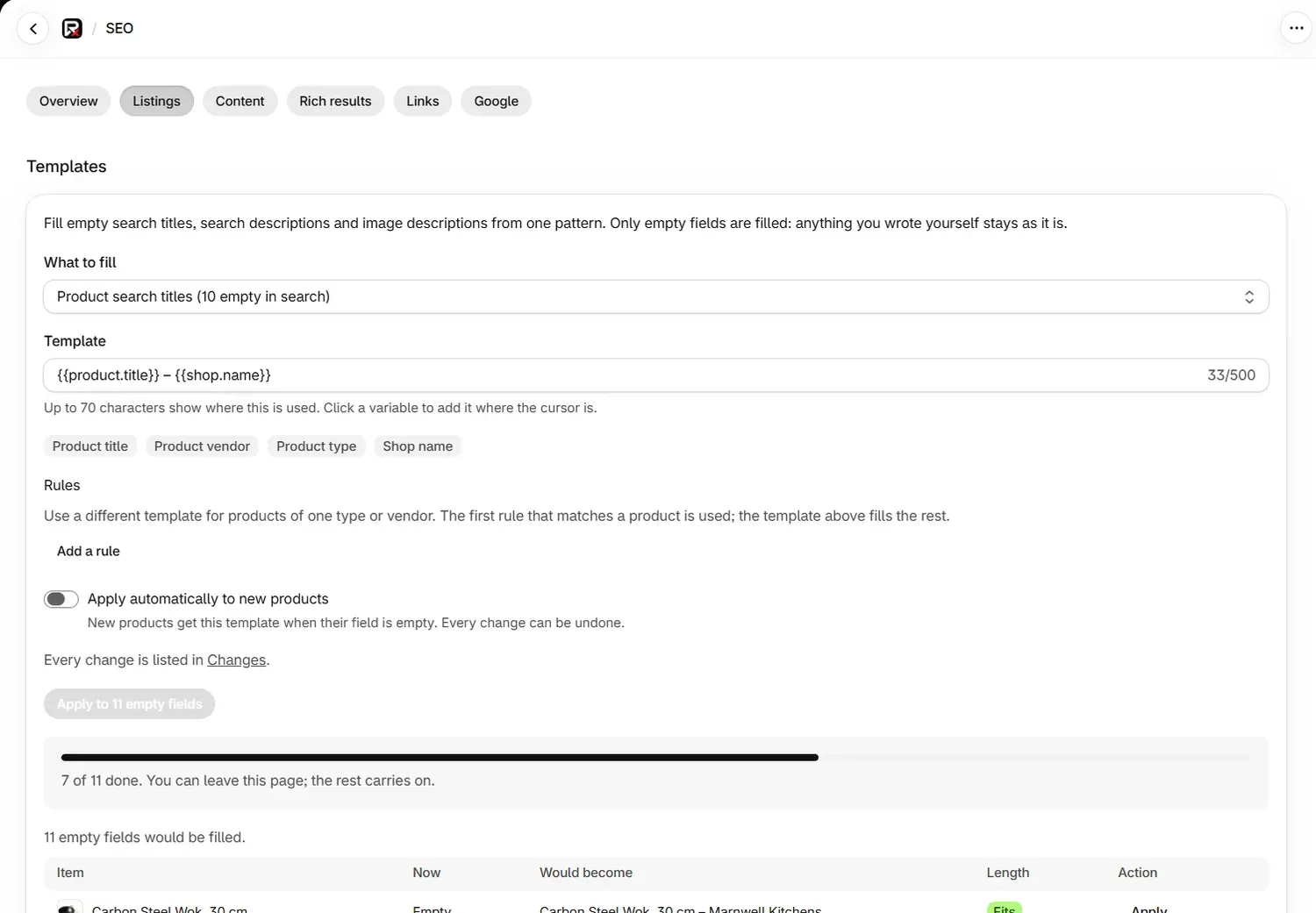
What can a template fill?
| What to fill | Suggested template | Shown length |
|---|---|---|
| Product search titles | {{product.title}} – {{shop.name}} | 70 |
| Product search descriptions | Shop {{product.title}} by {{product.vendor}} at {{shop.name}}. | 160 |
| Product image alt text | {{product.title}} – image {{image.position}} | 125 |
| Collection search titles | {{collection.title}} – {{shop.name}} | 70 |
| Collection search descriptions | Browse {{collection.title}} at {{shop.name}}. | 160 |
| Page search titles | {{page.title}} – {{shop.name}} | 70 |
| Page search descriptions | {{page.title}} from {{shop.name}}. | 160 |
| Blog post search titles | {{article.title}} – {{shop.name}} | 70 |
| Blog post search descriptions | {{article.title}}, from the {{blog.title}} blog at {{shop.name}}. | 160 |
The template box takes up to 500 characters. The shown length is how much of the result is kept: text is cut at a word boundary to fit.
Listings flags a search title above 60 characters and a description above 158 as may be cut off, so keep your pattern a little under the shown length. See Search titles and descriptions.
Which variables can I use?
| Variable | Button | Available in | What it adds |
|---|---|---|---|
{{product.title}} | Product title | Product targets | The product's title |
{{product.vendor}} | Product vendor | Product targets | The vendor |
{{product.type}} | Product type | Product targets | The product type |
{{product.price}} | Product price | Product search descriptions | The lowest variant price, with currency |
{{image.position}} | Image position | Product image alt text | The image's place in the product's images |
{{collection.title}} | Collection title | Collection targets | The collection's title |
{{page.title}} | Page title | Page targets | The page's title |
{{article.title}} | Article title | Blog post targets | The post's title |
{{blog.title}} | Blog title | Blog post targets | The blog's title |
{{shop.name}} | Shop name | Every target | Your store name |
What happens when a variable is empty?
- An empty variable is removed along with its linking word, such as "by", "at", "from", "for", "in", "of" or "with", and any doubled separator.
- A vendor that matches your store name counts as empty, so a product never reads "by Marnwell Kitchens at Marnwell Kitchens".
- If nothing is left, that item is skipped.
How do I use a different template for one type or vendor?
Rules give some products their own template. They work on product targets, and you can have up to 10.
Add a rule
Select Add a rule. Under When, choose Product type or Vendor.
Set the match
Under Is, type the type or vendor exactly as it appears in Shopify. Capitals do not matter.
Write its template and save
Fill in Template, then select Save template and rules. Select Remove to delete a rule.
The first rule that matches a product is used, and the main template fills the rest.
What does the preview show?
The preview updates as you type and shows the first 50 rows, with Item, Now, Would become, Length and Action.
| What you see | What it means |
|---|---|
| Fits | The result is within the shown length. |
| May be cut off | The result is longer than the shown length. |
| Empty | Every variable was empty, so this item is skipped. |
| Not unique | Some results would read the same as another page. Add a detail that differs, or a rule. |
| "Every one of these already has a value, so there is nothing to fill." | The target has no empty fields. |
What are the limits on applying a template?
- One apply writes up to 250 fields. If there are more, the button reads Apply to the first 250, and you apply again to fill the next ones.
- One apply reads up to 2,000 items. For image alt text it reads the first 20 images on each product.
- Each apply counts towards the 12 bulk fixes an hour, and so does each row's Apply.
- A field that was filled in the meantime is skipped and left as it was.
Every change appears in Changes, under Settings, where Undo all reverses the whole apply. See Undo changes.
How do I apply a template to new products automatically?
Turn on Apply automatically to new products, on any product target. A new product then gets the template when its field is empty. This is free on every plan.
It runs when a product is created with the status Active. Editing an existing product does not start it. These changes appear in Changes marked (applied automatically), and you can undo them.
Common problems
| What you see | Cause | What to do |
|---|---|---|
| "Write a template." | The template is empty. | Type a pattern, or select Start from the suggested template. |
| "Keep the template under 500 characters." | The template is too long. | Shorten it. |
| "These are not available here:" and a variable | That variable does not belong to this target. | Use the variable buttons shown for this target. |
Use at least one detail, such as {{product.title}}, so each one is different. | The template has no variable, so every field would read the same. | Add a variable. |
| A message that a variable "is not closed or not recognised" | A variable is mistyped or missing its closing braces. | Check the spelling, or use the buttons. |
| "Rules by product type or vendor apply to products only." | The target is a collection, page or blog post. | Remove the rule. |
| "Nothing to fill: every one already has a value." | There are no empty fields left. | Nothing more is needed. |
| "Templates could not be read just now." | The page could not load them. | Reload the page. |
| "We could not save the template just now." | The save failed. | Try again in a moment. |
What to do next
Questions
Do templates overwrite what I wrote?
No. Templates fill empty fields only, so anything you wrote yourself stays as it is.
Do templates cost credits?
No. Templates are free on every plan, including Free, and that includes applying them automatically to new products.
Where do I find templates?
Go to SEO, open the Listings tab and select Fill in bulk.
Can a template fill new products by itself?
Yes, for product templates. Turn on Apply automatically to new products. A new active product then gets the template when its field is empty.
Last updated