Product categories
Choose the right category from the Shopify Standard Product Taxonomy, and set the details shoppers ask about.
A product's category tells Shopify what the product is, and the category decides which details shoppers can filter and compare on. RankX AI finds products with no category, a retired category or one that is too broad. You choose from Shopify's Standard Product Taxonomy, and the app writes your choice to Shopify's own category field.
Before you start
- Every plan, including Free. Categories and details use no credits.
- Your store needs a finished product check, so the issues are listed.
Which category issues does the check find?
| Issue | What it means |
|---|---|
| No product category | The product has no category. Gift cards are exempt. |
| Category no longer in use | Shopify has retired this category. Choose a current one, so Shopify can ask for the right details. |
| Category too broad | A more specific category exists below this one. |
| Missing details shoppers ask about | The category has recommended details, such as material or size, and at least one has no value. |
How do I fix a product's category?
Open the issue
Go to Products, then select Fix products beside the category issue. The page lists every product with that issue.
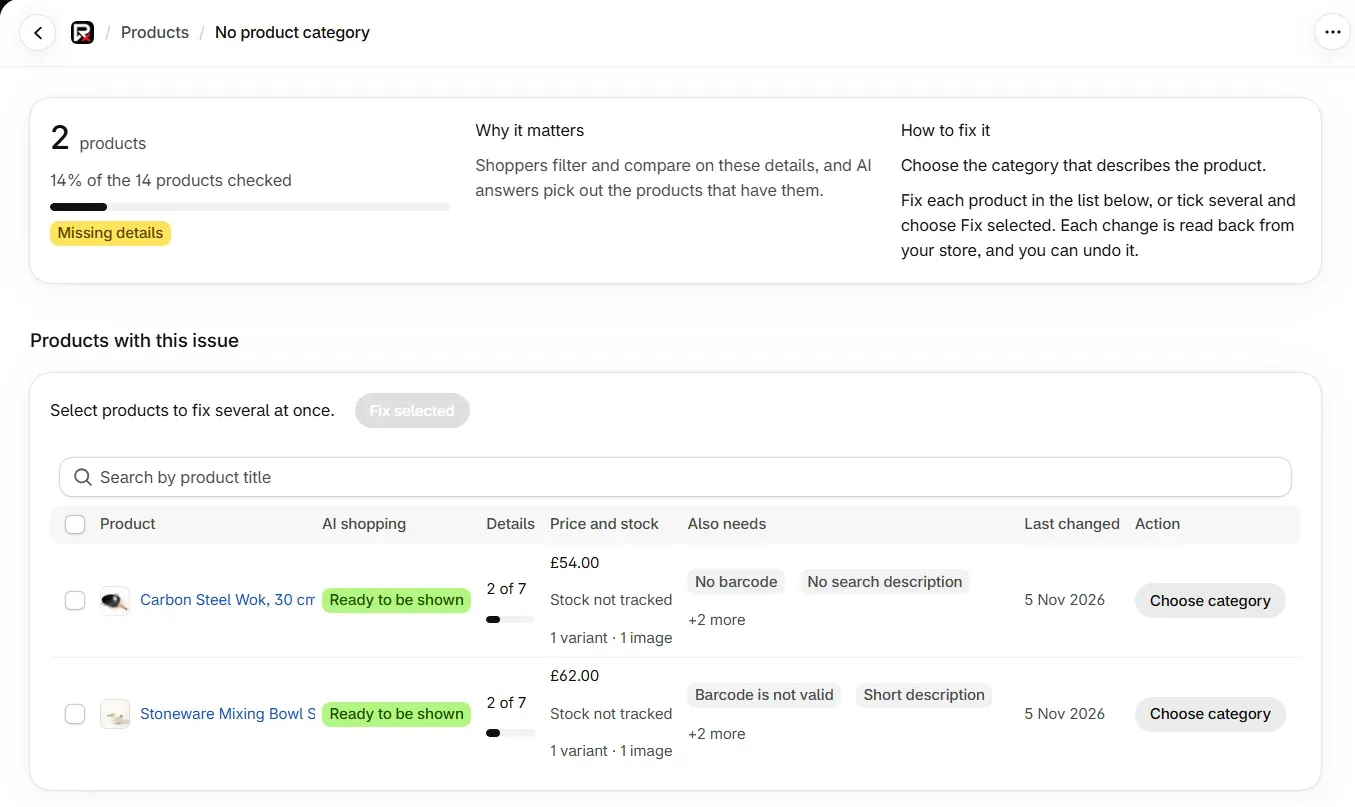
Search Shopify's categories
Select Choose category on the product. Type a word in Search Shopify's categories, at least two letters. You get up to 12 results, each with its full path, and retired categories are never offered.
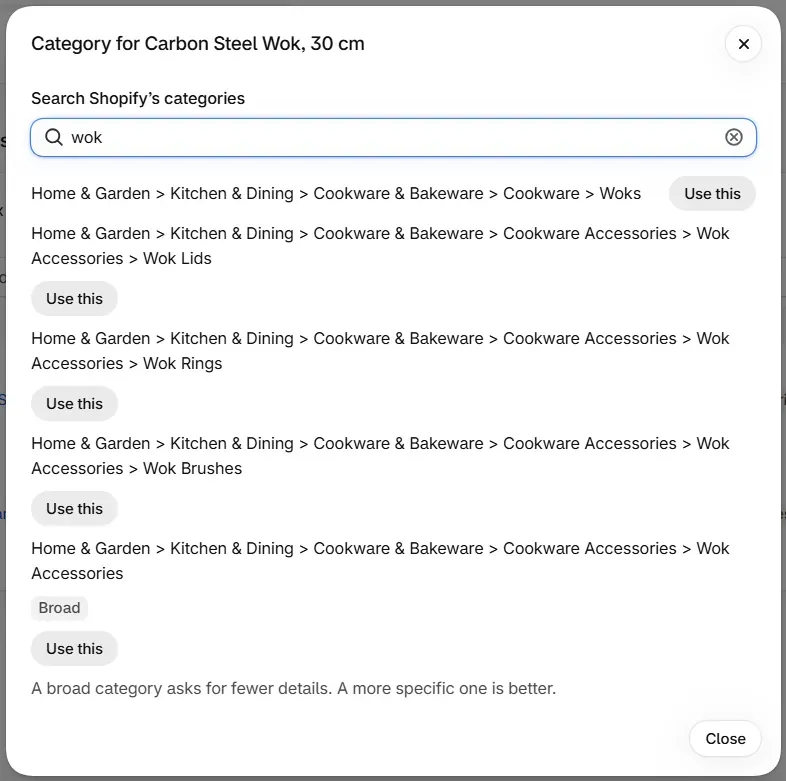
Use the most specific match
Select Use this beside the category. A result with the badge Broad has more specific categories below it. It can still be chosen, but it asks for fewer details and the product then shows Category too broad.
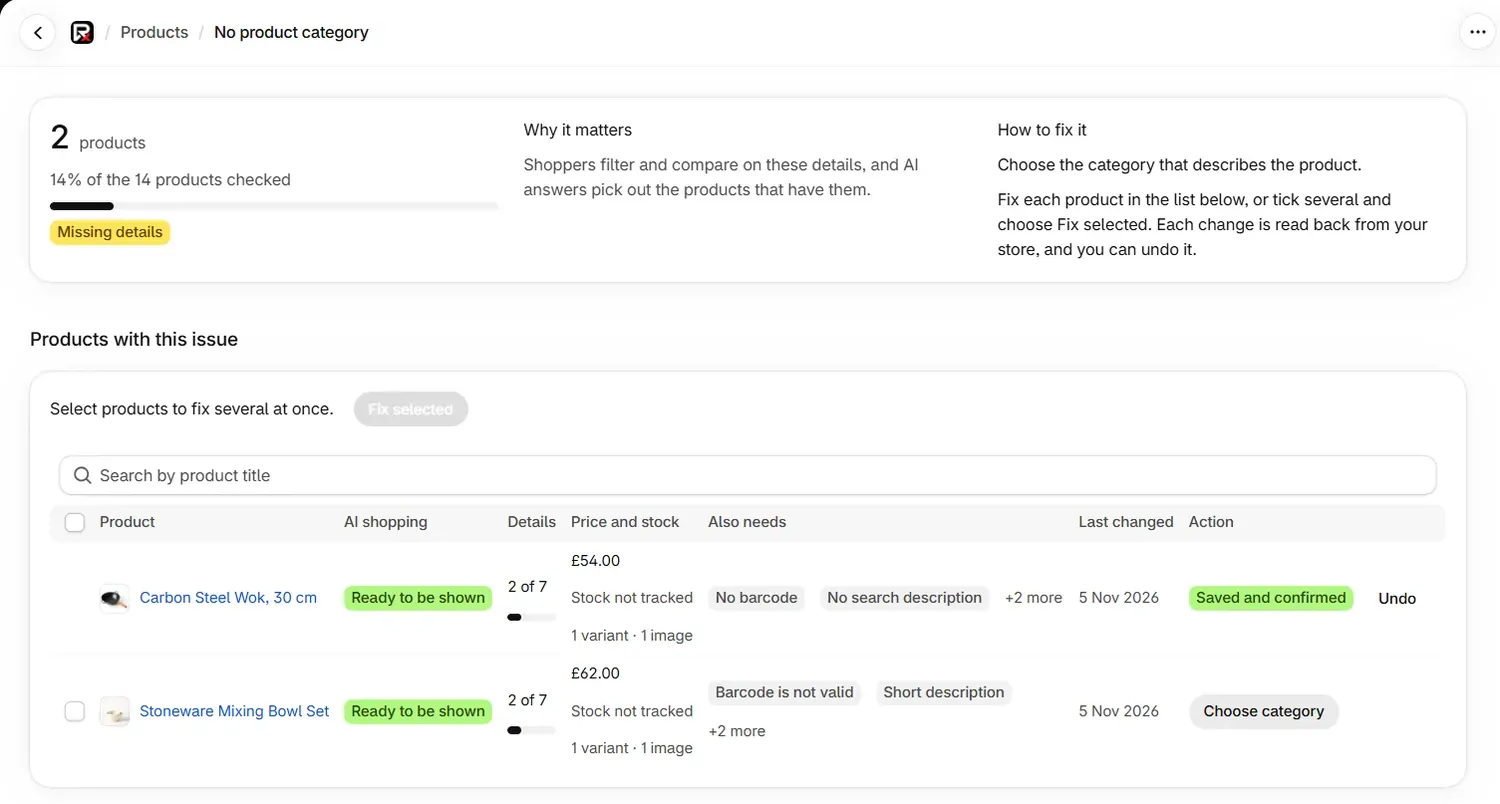
Check the row
The row shows Saved and confirmed once the app has read the category back from your store, with Undo beside it.
You can also start from the product. Open it from Your products and select Choose category under What to fix.
How do I set the details shoppers ask about?
Each category comes with details Shopify recommends for it, such as colour, shape or material. Each one counts as a detail in the product's "5 of 18 details" count. If the details for a category cannot be read, they are left out of the count.
Open the details
Go to Products, select Fix products beside Missing details shoppers ask about, then select Set details on a product. The dialog shows the category and how many details are not set.
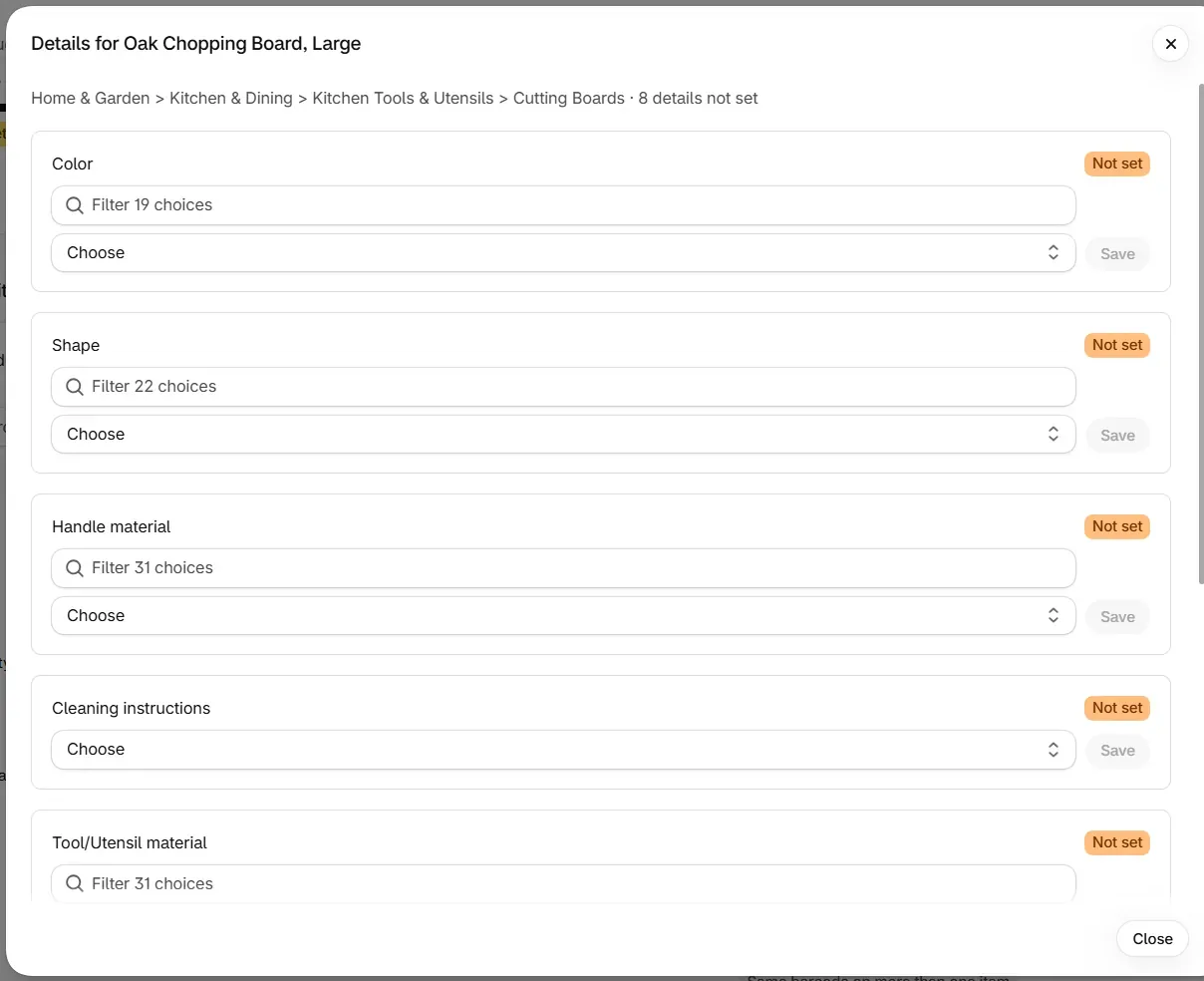
Choose a value and save
For each detail, select Choose, pick a value and select Save. A detail with more than 15 choices has a filter box above the list. The row then shows the new value and Undo.
The values on offer come from Shopify's own list for the category, and the app accepts only those.
What does each line in the details dialog mean?
| What you see | What it means |
|---|---|
| Not set | The detail has no value. |
| Set: and a value | The detail has this value. You can choose another. |
| "This detail is a measurement or free text, so you set it on the product's page." | The detail has no list of choices. Set it in Shopify. |
| "Shopify lists no details for this category." | There is nothing to set for this category. |
| "Choose a category for this product first" | Details come from the category, so the product needs one. |
Can I set a category on many products at once?
Yes. Tick the products, select Fix selected and choose one category. It goes on every selected product and replaces what was there.
Details work in bulk too, one detail at a time, as long as every selected product is in the same category. Bulk fixes has the steps and limits.
What happens when I undo a category or detail?
Undoing a category puts the earlier one back, or leaves the product with no category if it had none.
Undoing a detail puts back the earlier values, or takes the value off the product. A value added to your store's list stays in that list. Undo changes covers the rest.
Common problems
| What you see | Cause | What to do |
|---|---|---|
| "No category matches. Try a broader word." | Nothing in Shopify's list matches your search. | Try one general word, such as "wok" rather than a model name. |
| "We could not search Shopify's categories just now." | Shopify could not be reached. | Try again in a moment. |
| "Choose Material from Shopify's list." (with the detail's name) | The value is not on Shopify's list for this detail. | Pick a value from Choose. |
| "That detail does not belong to this product's category." | The category changed, so this detail no longer applies. | Choose the category first, then set its details. |
| "We could not read Shopify's details for this category just now." | The list could not be read. | Try again in a moment. |
| "Shopify has no definition for this detail on your store yet." | The detail has not been used on your store. | Set it once in Shopify's product editor, then return. |
| "This detail cannot be set from a list here." or "This detail needs more than a choice from a list." | The detail is not a simple list. | Set it in Shopify's product editor. |
| "Select products in the same category" | A bulk detail covers products with different categories. | Select products that share one category. |
| Saved, not yet confirmed | The change was sent, but the store did not read back the new value. | See what each save status means. |
| The issue count has not changed after a fix | Counts on Products change at the next check. | Wait for the next check, or select Check again. |
What to do next
Questions
Is setting a product category free?
Yes. Choosing a category and setting details is free on every plan, including Free, one product at a time or in bulk.
Can I choose a broad category?
Yes, but the product then shows Category too broad. A broad category asks for fewer details, so a more specific one is better.
Why can I not set a detail from a list?
Some details are a measurement or free text. Those are set on the product's page in Shopify. The app sets details that have a list of choices from Shopify.
Last updated